
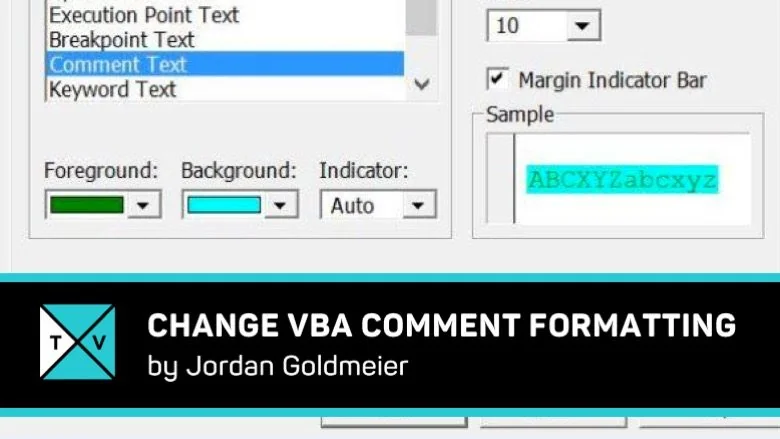
Excel MVP Jordan is continuing the Excel VBA Coding tips. While coding comments play an important role. Comments explain what certain piece of code does so that it would be easy when you share the code with others. So, Jordan unfolds the new coding tip related to comment. He explains the feature which adds color to comments. You can specify the text color and background color of the comment, so that when you look at the code, you would easily recognize the comments. So, let us see how to change comment formatting in Excel VBA.
How to Change Comment Formatting
In order to start writing VBA Code in Excel, we need to enable the ‘Developer’ tab first and we will see how to do that.
1 – Enable Developer Tab
Once you open the Excel Spreadsheet, click on ‘File’ and select ‘Options’. In ‘Excel Options’ dialog box, click on ‘Customize Ribbon’ on the left side. Check the option ‘Developer’ on the right side and click ‘Ok’. This would show the ‘Developer’ tab in your Excel Spreadsheet.
2 – Open the Visual Basic Editor
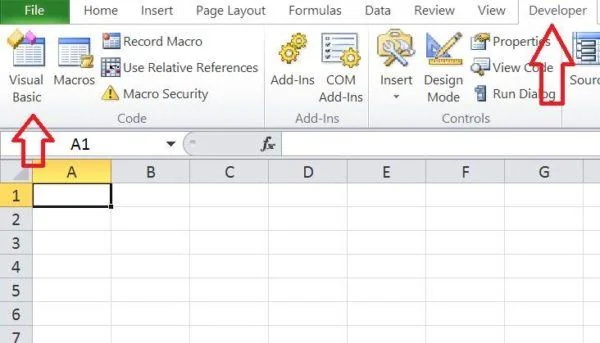
To open Visual Basic editor, click on ‘Visual Basic’ icon under ‘Developer’ tab. This would open the ‘Microsoft Visual Basic for Applications’ window where you can start writing the Visual Basic programs.
3 – Change Comment Formatting
In order to change comment formatting, click on ‘Tools’ and select ‘Options’.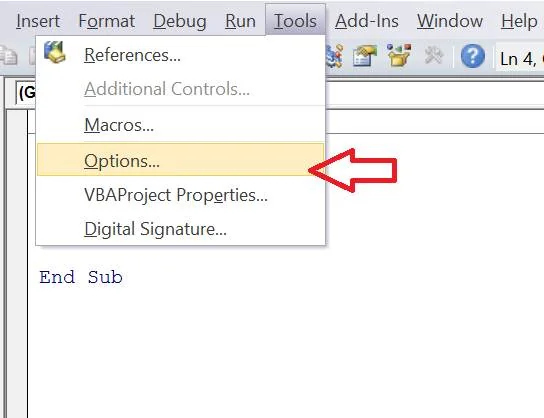
‘Options’ dialog box opens up and clicks on ‘Editor Format’ tab.
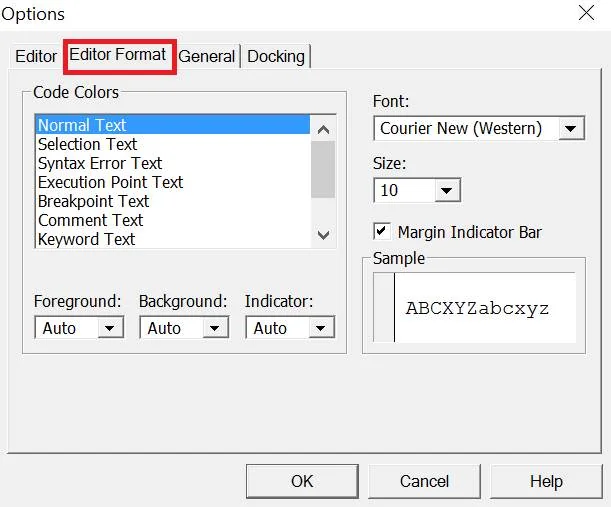
Now, under ‘Code Colors’ section, select ‘Comment Text’ and select Foreground color, Background color, Font type, Font size and more.
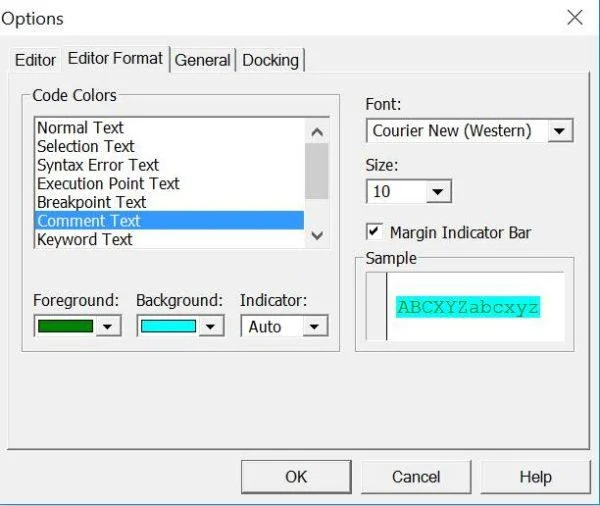
It even shows the preview and once you are ok with the formatting, click ‘Ok’
From now on when you type a comment in VBA Code, then you would see the format getting applied to comments.
What’s next?
Jordan has unfolded very useful VBA Coding tip. Give it a try and let us know your opinion or suggestion on it. If you have anything to add, please do share with us through comments.
