
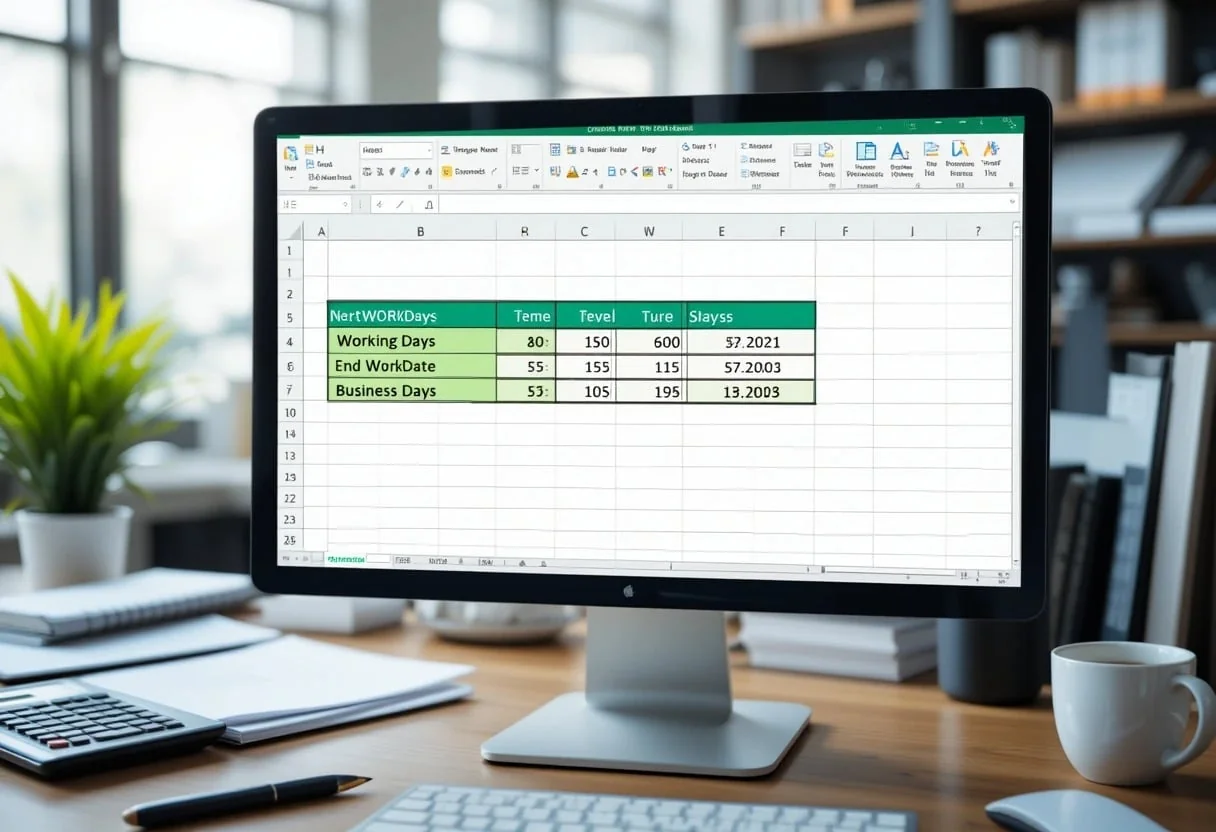
When working with Excel Working Days Formula, calculating the number of business days between two dates is essential for project management, payroll processing, and financial analysis. I’ve used it countless times to streamline calculations and improve accuracy in my work.
The WORKDAY function in Excel calculates the workday that falls a specified number of days before or after a given date, excluding weekends and holidays. This powerful tool saves hours of manual calculations and reduces errors in critical financial models.
I find the WORKDAY function invaluable for forecasting cash flows, scheduling project milestones, and analyzing employee productivity. It’s particularly useful when dealing with international teams or complex payment terms that exclude non-working days. The function’s flexibility allows me to customize weekend definitions and holiday lists, making it adaptable to various business contexts.
I often combine WORKDAY with other Excel functions to create sophisticated financial models. For instance, I use it with NETWORKDAYS to calculate business days between two dates, factoring in custom weekends and holidays. This level of precision is crucial for accurate budgeting and resource allocation in my role as a financial analyst.
Key Takeaways
- Excel’s WORKDAY function calculates working days while excluding weekends and holidays
- Custom weekend definitions and holiday lists can be incorporated for precise calculations
- Combining WORKDAY with other Excel functions enhances financial modeling and forecasting accuracy
Understanding Time in Excel
I’ve found mastering time calculations in Excel crucial for financial modeling and analytics. Excel treats dates as serial numbers, with January 1, 1900 as day 1. This system allows for easy date arithmetic.
To work with dates, I use the DATE function. It takes year, month, and day as inputs. For example:
=DATE(2025,1,18)This returns the serial number for January 18, 2025.
When analyzing financial data, I often need to calculate working days between dates. The NETWORKDAYS function is my go-to tool for this. It excludes weekends and can account for holidays.
To find future or past dates, I use the WORKDAY function. It’s invaluable for projecting deadlines or backtracking from due dates. Here’s a quick example:
=WORKDAY(A1, 10)This formula returns the date 10 working days after the date in cell A1.
For more complex time-based analyses, I combine these functions with Excel’s powerful array formulas. This allows me to perform bulk calculations across entire datasets, saving time and reducing errors in my financial models.
The Fundamentals of Excel Date Functions
Excel offers powerful date functions to handle working day calculations. These tools are essential for financial analysis and project management. Let’s explore the key functions that make date-based computations a breeze.
WORKDAY Function
I rely heavily on the WORKDAY function for precise date calculations in my financial models. This function returns a date that’s a specified number of working days before or after a start date. It’s invaluable for determining project deadlines or payment dates.
The syntax is straightforward: WORKDAY(start_date, days, [holidays]). Here’s a quick example:
=WORKDAY(A1, 10, B1:B5)This formula will give me a date 10 working days after the date in A1, excluding weekends and any holidays listed in B1.
WORKDAY can handle holidays as an optional argument. I often use this to account for company-specific non-working days in my financial projections.
Networkdays Function
When I need to calculate the number of working days between two dates, NETWORKDAYS is my go-to function. It’s particularly useful for payroll calculations and project duration estimates.
The basic syntax is: NETWORKDAYS(start_date, end_date, [holidays]). For instance:
=NETWORKDAYS(A1, A2, B1:B5)This calculates the working days between dates in A1 and A2, excluding weekends and holidays in B1.
I often combine NETWORKDAYS with other functions for more complex analyses. For example, to calculate overtime hours in a pay period:
=MAX(0, (NETWORKDAYS(A1, A2) * 8) - C1)This assumes an 8-hour workday and subtracts regular hours (C1) from total working hours.
WEEKDAY Function
The WEEKDAY function is a versatile tool I use to determine which day of the week a specific date falls on. It’s helpful for scheduling and allocating resources in my financial models.
The basic syntax is: WEEKDAY(serial_number, [return_type]). For example:
=WEEKDAY(A1, 1)This returns a number from 1 (Sunday) to 7 (Saturday) for the date in A1.
I often use WEEKDAY in conditional formatting to highlight specific days:
=WEEKDAY(A1,2)<=5This formula returns TRUE for weekdays (Monday to Friday), which I can use to format cells differently.
Working with WORKDAY and NETWORKDAYS Functions
I’ve found these Excel functions to be invaluable for precise date calculations in financial models and project timelines. They help me account for working days, exclude weekends and holidays, and handle custom work schedules with ease.
Calculating Working Days
To calculate working days between two dates, I rely on the NETWORKDAYS function. It’s a powerful tool that automatically excludes weekends. Here’s a simple formula I often use:
=NETWORKDAYS(start_date, end_date)This returns the number of working days, assuming Saturday and Sunday are weekends. For more complex scenarios, I might need to adjust for holidays or different weekend schedules.
When I’m planning project timelines, I turn to the WORKDAY function. It allows me to find a future date based on working days:
=WORKDAY(start_date, number_of_days)This is particularly useful for calculating deadlines or milestone dates in project management.
Excluding Holidays and Custom Weekends
To account for holidays in my calculations, I create a range of holiday dates and include it in my NETWORKDAYS formula:
=NETWORKDAYS(start_date, end_date, holiday_range)This ensures my financial models accurately reflect actual working days, improving the accuracy of cash flow projections and resource allocation.
For custom weekend schedules, I turn to the NETWORKDAYS.INTL function. It allows me to specify which days are considered weekends:
=NETWORKDAYS.INTL(start_date, end_date, weekend_code, holiday_range)The weekend_code parameter is versatile, allowing for various work week configurations.
Utilizing NETWORKDAYS.INTL and WORKDAY.INTLFunctions
These international versions of the functions offer greater flexibility for global operations. I use NETWORKDAYS.INTL when dealing with different country schedules:
=NETWORKDAYS.INTL(start_date, end_date, "0000011")Here, “0000011” indicates Friday and Saturday as weekends, common in some Middle Eastern countries.
WORKDAY.INTL is my go-to for calculating due dates in international projects:
=WORKDAY.INTL(start_date, num_days, weekend_code, holidays)It’s crucial to note that if any arguments are invalid, these functions return a #NUM! error. I always validate my inputs to avoid calculation errors in critical financial models.
Advanced Excel Workbook Strategies
I’ve found that mastering advanced Excel techniques can dramatically improve financial analysis and data modeling. These strategies elevate workbooks from basic calculators to powerful analytical tools.
Named Ranges and Absolute References
I always use Named Ranges to make my formulas more readable and maintainable. By giving meaningful names to cell ranges, I can quickly understand complex calculations at a glance. For example, instead of using $A$1:$A$100, I might name it “Revenue_Data“.
Absolute References are crucial when I’m copying formulas across rows or columns. By anchoring specific cells with $ signs, I ensure my calculations remain accurate. Here’s a quick reference:
- $A$1: Column and row fixed
- A$1: Row fixed, column can change
- $A1: Column fixed, row can change
I often combine Named Ranges with Absolute References in financial models. This approach makes my workbooks more robust and easier to audit.
Array Constants and Sequence Functions
Array Constants are powerful tools I use to create compact, efficient formulas. Instead of referencing a range of cells, I can embed values directly into a formula. For example:
=SUM({1,2,3,4,5})This calculates the sum without needing separate cells for each value.
I frequently use Sequence Functions to generate arrays of numbers or dates. The SEQUENCE function is particularly useful for creating dynamic ranges:
=SEQUENCE(10,1,2020,1)This generates a column of 10 numbers, starting at 2020 and incrementing by 1.
Conditional Formatting for Data Visualization
I rely heavily on Conditional Formatting to highlight trends and outliers in my financial data. It’s an invaluable tool for quickly identifying areas that need attention.
Some of my favorite techniques include:
- Color scales for comparing values across a range
- Icon sets to categorize data points
- Data bars to show relative sizes
I often use custom formulas in Conditional Formatting to create more complex rules. For instance, I might highlight cells that are both above average and in the top 10% of values.
By combining these formatting rules, I can create dashboards that provide instant insights into complex datasets, making it easier for stakeholders to grasp key financial metrics at a glance.
Error Handling and Troubleshooting Formulas
When working with Excel formulas, especially for complex financial models, I’ve found that error handling is crucial. I rely on robust formulas that can handle unexpected inputs gracefully. Let me share some key insights on managing common errors in Excel.
The #NUM! Error Explained
The #NUM! error often crops up in financial calculations when dealing with invalid numeric inputs. I frequently encounter this when using functions like IRR or XNPV with inconsistent cash flows. To resolve it, I first check the formula for typos and syntax errors.
Next, I verify that all inputs are within the valid range for the function. For example, when using the MOD function, I ensure the divisor isn’t zero. In cell G6, I might use:
=IFERROR(MOD(A1,B1), "Invalid divisor")This approach prevents the #NUM! error and provides a clear message to users.
Resolving #VALUE! Error in Date Calculations
The #VALUE! error often appears in date calculations when Excel can’t interpret a value as a valid date. I regularly work with date-sensitive data for revenue forecasting and cash flow projections.
To tackle this, I use the WORKDAY function carefully. I always ensure my start date is a valid Excel date and the number of days is a positive integer. For instance:
=IFERROR(WORKDAY(A1, B1), "Invalid date input")This formula gracefully handles errors while maintaining data integrity in my financial models.
Financial Applications of Working Days Calculations
Working days calculations are essential in finance for accurate projections and timing. I use these formulas to optimize financial planning and resource allocation across various business scenarios.
Assessing Delivery Dates and Due Dates
I rely on Excel’s WORKDAY function to calculate precise delivery and due dates. This helps me avoid costly delays and ensures timely payments.
For invoices, I input the issue date and payment terms:
=WORKDAY(A1, 30)This formula adds 30 working days to the date in cell A1, accounting for weekends and holidays.
I also use the NETWORKDAYS function to count business days between two dates:
=NETWORKDAYS(A1, B1)This helps me track project durations and plan resource allocation efficiently.
Projecting Total Working Days for Part-Time Jobs
For part-time positions, I calculate total working days to determine pay periods and project costs. I use a custom weekend string in the WORKDAY.INTL function:
=WORKDAY.INTL(A1, 30, "0000011")This formula treats Saturday and Sunday as non-working days. I can easily modify the string for different schedules.
To calculate hours worked, I multiply working days by hours per day:
=NETWORKDAYS(A1, B1) * C1Where C1 contains daily hours. This helps me forecast labor costs and manage budgets effectively.
Optimizing Data Analysis with Working Days Calculations
I’ve found that incorporating working days calculations into financial models is crucial for precise forecasting and analysis. The Excel NETWORKDAYS function is my go-to tool for this task.
I often use NETWORKDAYS to calculate employee productivity, project timelines, and cash flow projections. It’s essential to exclude weekends and holidays for accurate results.
Here’s a simple formula I frequently employ:
=NETWORKDAYS(start_date, end_date, [holidays])This function allows me to quickly determine working days between two dates, giving me a more realistic view of business operations.
For more complex analyses, I combine NETWORKDAYS with other Excel functions. For instance, I use it with SUM and IF statements to calculate total billable hours across multiple projects.
I’ve also found the MOD function invaluable when working with cyclical data. By using MOD in conjunction with NETWORKDAYS, I can create sophisticated models that account for recurring events or payment cycles.
To optimize my workflow, I often create custom functions using VBA. This allows me to streamline repetitive calculations and reduce the chance of errors in my financial models.
Frequently Asked Questions
Excel offers powerful tools for calculating working days. I’ll explain how to handle holidays, add working days to dates, use key functions, exclude weekends, incorporate custom schedules, and list working days in a range.
How do I accurately calculate the total number of working days between two dates in Excel, considering holidays?
To calculate working days between dates while accounting for holidays, I use the NETWORKDAYS function. This function allows me to input a start date, end date, and a range of holiday dates.
Here’s an example formula:
=NETWORKDAYS(A1, A2, B1)
A1 is the start date, A2 is the end date, and B1 contains my holiday dates.
Can you demonstrate how to add a specific number of working days to a given date in Excel?
To add working days to a date, I rely on the WORKDAY function. This function takes a start date, number of working days to add, and optional holidays.
Here’s a sample formula:
=WORKDAY(A1, 10, B1)
This adds 10 working days to the date in A1, excluding weekends and holidays listed in B1.
What is the procedural difference between the WORKDAY and NETWORKDAYS functions in Excel when determining working days?
WORKDAY and NETWORKDAYS serve different purposes in my Excel models. WORKDAY calculates a future or past date based on working days, while NETWORKDAYS counts working days between two dates.
WORKDAY is great for project planning, as it helps me find end dates. NETWORKDAYS is perfect for calculating billable days or contract durations.
Could you elaborate on the method for excluding weekends from the working days calculation in Excel?
Both NETWORKDAYS and WORKDAY automatically exclude Saturdays and Sundays. I don’t need to take any extra steps to exclude these days from my calculations.
If I need to define different weekend days, I use NETWORKDAYS.INTL or WORKDAY.INTL. These functions allow me to specify which days of the week are weekends.
In Excel, how is the inclusion of custom holiday schedules handled when performing working days calculations?
To include custom holidays in my working day calculations, I create a range of cells containing my holiday dates. I then reference this range in my NETWORKDAYS or WORKDAY functions.
For example:
=NETWORKDAYS(A1, A2, Holidays!$A$1:$A$20)
What approach should be taken to list all the individual working days within a specified date range in Excel?
To list working days in a range, you can use a combination of the WORKDAY function and array formulas. First, calculate the number of working days using NETWORKDAYS.
Then, use this formula:
=WORKDAY(start_date, SEQUENCE(NETWORKDAYS(start_date, end_date))-1)
This generates a list of all working days between your start and end dates.
