
We all know the power of harnessing Excel VBA to dynamically sort tables, columns, and dashboards based on user input. But is there a simpler, more elegant way to achieve this? The answer is yes! This guide will walk you through the process of sorting tables and ranges using Excel VBA—from sorting multiple columns to sorting arrays alphabetically.
Excel MVP Jordan Goldmeier has shared insights that make sorting with VBA not only powerful but also efficient and intuitive. Let’s explore how to make Excel VBA sorting work for you.
Why Use Excel VBA for Sorting?
Excel VBA offers unparalleled flexibility when it comes to sorting data. While Excel’s built-in sorting tools are great for quick tasks, VBA allows for dynamic and automated sorting. Whether you’re working with large datasets or need to apply specific sorting logic repeatedly, Excel VBA can:
- Sort Ranges Dynamically: Use VBA to sort a range by multiple keys without manual intervention.
- Sort Tables by Column Name: Automatically sort tables based on column headers.
- Sort Arrays Alphabetically: Organize data in arrays for more advanced applications.
- Handle Multiple Columns: Sort by multiple columns in ascending or descending order with ease.
Let’s dive in!
Getting Started with Excel VBA Sort
To sort data using VBA, you’ll need to understand the basics of the Sort method. This method allows you to sort ranges, tables, and arrays based on your criteria.
Example 1: Excel VBA Sort Range
Here’s how you can sort a range in ascending order by a single column:
Sub SortRangeAscending()
    Dim ws As Worksheet
    Set ws = ThisWorkbook.Sheets("Sheet1")

    With ws.Sort
        .SortFields.Clear
        .SortFields.Add Key:=ws.Range("A1:A10"), Order:=xlAscending
        .SetRange ws.Range("A1:B10")
        .Header = xlYes
        .Apply
    End With
End Sub
This code sorts the range A1:B10 by the first column in ascending order. You can modify the Key and Order parameters to sort by other columns or in descending order.
Sorting Tables with VBA
Example 2: Excel VBA Sort Table by Column Name
Sorting a table by column name can be incredibly useful when working with structured data. Here’s an example:
Sub SortTableByColumnName()
    Dim ws As Worksheet
    Dim tbl As ListObject
    Set ws = ThisWorkbook.Sheets("Sheet1")
    Set tbl = ws.ListObjects("Table1")

    With tbl.Sort
        .SortFields.Clear
        .SortFields.Add Key:=tbl.ListColumns("Sales").Range, Order:=xlDescending
        .Header = xlYes
        .Apply
    End With
End Sub
This code sorts the table named “Table1” by the “Sales” column in descending order. Replace “Sales” with any column name to customize the sort.
Sorting by Multiple Columns
Example 3: Excel VBA Sort by Multiple Columns
Sorting by multiple columns is essential when you need to prioritize data hierarchies. Here’s how to sort by multiple keys:
Sub SortRangeMultipleKeys()
    Dim ws As Worksheet
    Set ws = ThisWorkbook.Sheets("Sheet1")

    With ws.Sort
        .SortFields.Clear
        .SortFields.Add Key:=ws.Range("A1:A10"), Order:=xlAscending
        .SortFields.Add Key:=ws.Range("B1:B10"), Order:=xlDescending
        .SetRange ws.Range("A1:C10")
        .Header = xlYes
        .Apply
    End With
End Sub
This code sorts the range A1:C10 first by column A in ascending order and then by column B in descending order. You can add more SortFields for additional keys.
Advanced Sorting: Sorting Arrays Alphabetically
Example 4: Excel VBA Sort Array Alphabetically
Sorting arrays alphabetically can be helpful when working with data in memory. Here’s an example:
Sub SortArrayAlphabetically()
    Dim myArray() As String
    Dim i As Long, j As Long
    Dim temp As String

    ' Initialize array
    myArray = Split("Orange,Apple,Banana,Grape", ",")

    ' Bubble sort
    For i = LBound(myArray) To UBound(myArray) - 1
        For j = i + 1 To UBound(myArray)
            If myArray(i) > myArray(j) Then
                temp = myArray(i)
                myArray(i) = myArray(j)
                myArray(j) = temp
            End If
        Next j
    Next i

    ' Output sorted array
    For i = LBound(myArray) To UBound(myArray)
        Debug.Print myArray(i)
    Next i
End Sub
This code sorts a string array alphabetically and prints the result to the Immediate Window.
Sorting Best Practices
- Define Your Range Clearly: Always specify the exact range or table you want to sort.
- Use Dynamic Ranges: Utilize named ranges or dynamic references to make your code adaptable.
- Test Your Code: Run your VBA scripts on sample data to ensure the sorting logic works as intended.
- Combine Sorting with Filters: For complex datasets, consider applying filters before sorting to isolate relevant data.
1 – The Excel Dashboard Data
The image below shows an illustrative data set, where A, B and C are metrics were are interested in. Also, the Result can be interpreted as an overall score (based on these metrics) representing the effectiveness of each project.
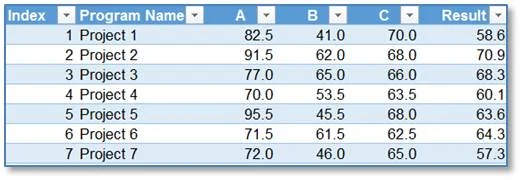
The problem at our hand is to have a sorted version of this table based on what the user chooses from the metrics or the Result.
2 – Setting up the Dashboard
The image below shows the setup we will be using. Of course, you can use any template you like. The important thing is to get an understanding of the technique.
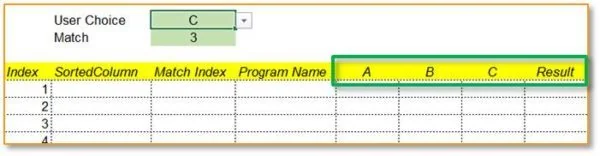
The User Choice is a dropdown menu containing the choices A, B, C and Result. The end-user can choose any of them based on their interests. The Match just returns index of User Choice from the green highlighted set of cells. Note that we will always be using an exact match.
3 – Sorting Column
In this step we will add a column to our data to fetch the information we are interested in. As demonstrated in the image below, we just index the value we are interested in.
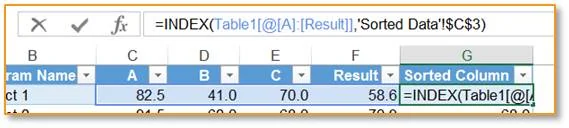
Of course, the value to fetch depends on the result of our Match from the Setup above. Since we selected C in our template, for example, the Match was 3. ‘Sorted Data’!$C$3 represents the location of this 3 in our template chosen. Hence, as expected this formula would return 70.0.
4 – LARGE function
Now, in our template, we would be using the LARGE function to sort the data into descending order. The image below shows the input formula.
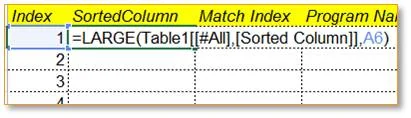
We selected the array “Sorted Column” from the data, and the LARGE function returned the 1st largest value. Dragging the formula down to Index 2 will give the 2nd largest value, then the 3rd and so on.
5 – MATCH and INDEX
In the Match Index column in our template, we try to find row number of the value returned by the LARGE function from the data. It has been illustrated in the image below.

Once we know this row number, it is easy to use the INDEX function to fetch the Program Name, A, B, C and Result from this row in the data. The result will look something like this:
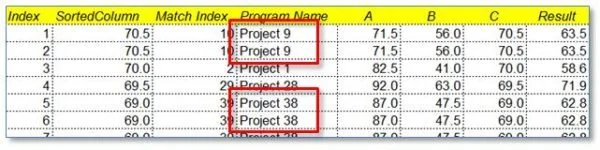
Notice how the projects are listed in a descending order according to metric C. However, there is one problem: some entries are repeated! Well, this actually was expected. Let’s address this now.
6 – Sorting Column Revisited
As you might have guessed it, the problem occurs because multiple projects can have the same score. And since the MATCH function always picks up the first one, it gets repeated multiple times. Now, we will attempt to change the Sorted Column part of our data to prevent this repetition.

As shown in the picture, we just add the index number divided by 10,000 or 100,000. Since no project has the same index number, no project will have the same number in this column. And now when we turn to our template, we see that the duplicates have vanished!
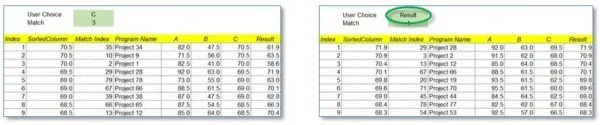
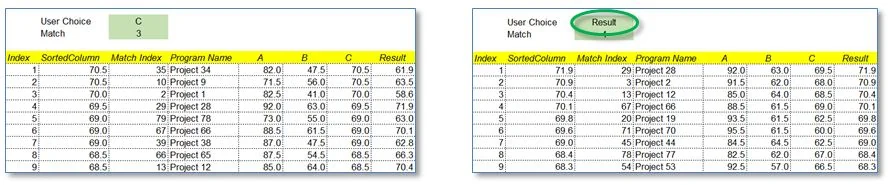
See how the same sorting template is also working perfectly when Result is selected in User Choice.
This process of adding varying amounts of very small quantities to the data to make every entry unique is known as data jittering. And this technique is commonly employed in graphing problems.
What’s next?
Excel VBA sorting is a game-changer for automating data organization. Whether you’re sorting ranges, tables, or arrays, VBA gives you the power to customize sorting logic to fit your needs. From sorting multiple columns to dynamically sorting tables by column name, the possibilities are endless. Use the examples and best practices in this guide to elevate your Excel skills and streamline your workflow.
And do not forget to share your thoughts and experiences with us in the comments section below. Cheers!
