
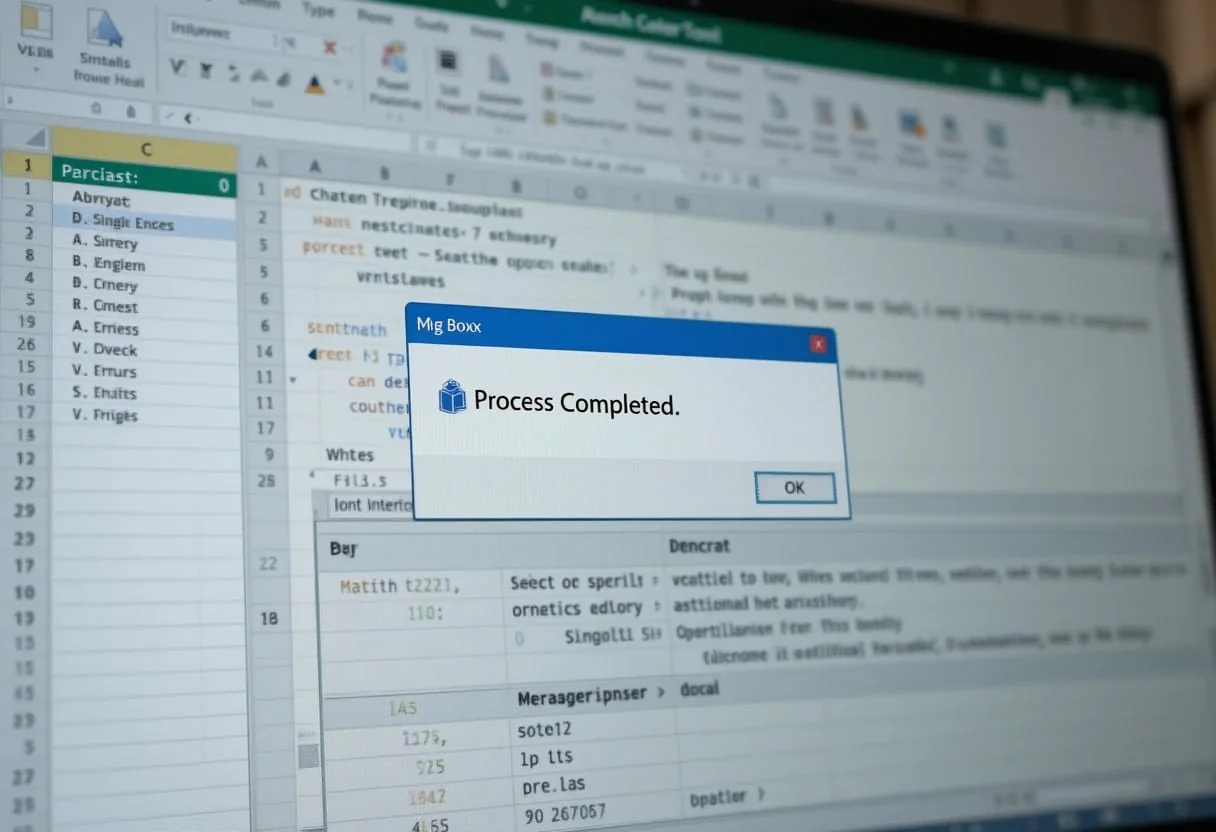
When working with Excel VBA, message boxes are essential for interacting with users. The Excel VBA Message Box (MsgBox) function allows you to display messages, gather user responses, and create interactive alerts within your macros. Whether you’re confirming actions, displaying error messages, or providing guidance, MsgBox enhances the user experience by making VBA scripts more interactive and intuitive.
If Excel is still blocking your code, start with How to Enable Macros in Excel so these prompts can actually run.
I’ve found message boxes particularly useful for validating inputs and presenting analysis results. They’re simple to implement yet powerful in their impact. Whether you’re building a complex financial model or a basic data entry form, mastering the MsgBox function can elevate your VBA projects to new heights.
Key Takeaways
- VBA message boxes enhance user interaction and streamline data processes in Excel
- The MsgBox function displays custom messages and gathers user input
- Mastering message boxes can significantly improve Excel VBA project quality
Understanding MsgBox Fundamentals
The MsgBox function is a powerful tool in Excel VBA for displaying messages and getting user input. I’ve found it essential for creating interactive macros and providing feedback in financial models.
Syntax and Parameters
The basic syntax for MsgBox is:
MsgBox(prompt[, buttons][, title][, helpfile, context])The ‘prompt‘ parameter is required and contains the message text. Other parameters are optional. I often use ‘buttons‘ to specify which buttons appear and ‘title‘ for the box’s header.
For example:
result = MsgBox("Update financial model?", vbYesNo + vbQuestion, "Model Update")This displays a Yes/No question with an interrogation icon. The user’s choice is stored in ‘result‘.
Icon Style and Functionality
I can customize MsgBox appearance and behavior using predefined constants. Common ones I use are:
- vbOKOnly: Shows just an OK button
- vbYesNo: Displays Yes and No buttons
- vbExclamation: Adds a warning icon
- vbInformation: Shows an information icon
The return value indicates which button was clicked. I often use this in conditional statements:
If MsgBox("Run quarterly analysis?", vbYesNo) = vbYes Then
    ' Code to run analysis
End If
This allows me to create interactive flows in my financial models, improving user experience and data validation processes.
Designing the User Experience
I find that crafting an effective message box is crucial for enhancing user interaction in Excel VBA. A well-designed MsgBox can guide users, provide feedback, and streamline workflows.
MsgBox Button Constants and Their Effects
When I’m creating message boxes, I carefully consider which buttons to include. Excel VBA offers several button constants that I can use to customize the user experience.
Customizing MsgBox Appearance
To make my message boxes more effective, I focus on tailoring their appearance. Here are some key aspects I consider:
-
Custom Title: I always set a descriptive title using the Title parameter. For example:
**MsgBox "Data analysis complete.", vbInformation, "Financial Report Status" ** -
Prompt Text: I keep the main message concise and clear, often using line breaks for readability:
**MsgBox "Update quarterly projections?" & vbNewLine & "This action cannot be undone.", vbYesNo, "Forecast Update"** -
Help Integration: For complex operations, I link to a help file:
**MsgBox "Need assistance?", vbInformation + vbMsgBoxHelpButton, "Help", "MyHelpFile.chm", 100**
By carefully designing these elements, I ensure my Excel VBA applications provide a smooth, informative user experience.
Message Box Variants and Their Applications
Message boxes in Excel VBA offer versatile options for user interaction and error handling. I’ll explore how different variants can enhance data validation and streamline workflow in financial models and data analysis tasks.
Conditional Logic and User Interaction
When building complex financial models, I often use the VBYesNo and VBYesNoCancel message box variants to guide users through critical decision points. For example:
Dim response As VbMsgBoxResult
response = MsgBox("Update forecasts with new market data?", vbYesNo)

If response = vbYes Then
    ' Code to update forecasts
Else
    ' Code to skip update
End If
This approach allows me to build in decision trees that adapt to user input, crucial for scenario analysis in financial modeling.
I also leverage VBOKCancel for confirmation prompts before executing resource-intensive calculations or data imports. This safeguard prevents accidental runs of time-consuming processes.
Error Handling Using MsgBox
In my data analysis workflows, I rely on MsgBox for robust error handling. The VBAbortRetryIgnore variant is particularly useful when dealing with external data sources that may be temporarily unavailable.
On Error GoTo ErrorHandler

' Data import code here

Exit Sub

ErrorHandler:
Select Case MsgBox("Error importing data. Retry?", vbAbortRetryIgnore)
    Case vbAbort
        ' Clean up and exit
    Case vbRetry
        Resume
    Case vbIgnore
        Resume Next
End Select
This structure allows for graceful error recovery, maintaining data integrity in financial models, and preventing crashes during critical analysis tasks.
Advanced MsgBox Features
I’ve found that mastering advanced MsgBox features can significantly enhance Excel VBA automation and user interaction. These tools allow for more sophisticated dialog boxes and improved user guidance.
Utilizing MsgBox Modality Types
I often use different MsgBox modality types to control how dialog boxes interact with other windows. The VBMsgBoxSetForeground option is particularly useful when I want to ensure my message box stays on top of other windows. For right-to-left language support, I employ VBMsgBoxRtlReading.
When working with international teams, I’ve found that VBMsgBoxRight is invaluable for aligning text to the right side of the message box. This is especially helpful for languages that read from right to left.
To include line breaks in my messages, I use VBNewLine. This allows me to create more readable and structured dialog boxes, improving communication with users.
Implementing Help Buttons and Contextual Assistance
I’ve discovered that adding help buttons to MsgBoxes can greatly improve user experience. The VBMsgBoxHelpButton option allows me to include a help button in my dialog boxes. This feature is particularly useful when I’m creating complex financial models or data analysis tools that might require additional explanation.
When users click the help button, I typically link it to a custom help function. This function can display more detailed information, open a help file, or even launch a web browser with relevant documentation.
I often combine this with contextual assistance, where the help content changes based on the specific operation being performed. This approach has significantly reduced user confusion and support requests in my financial analysis projects.
Automation with MsgBox in Excel VBA
I find MsgBox to be an invaluable tool for automating workflows in Excel VBA. It allows me to create interactive prompts and notifications that enhance user experience and streamline data processing tasks.
Incorporating MsgBox into Automated Workflows
When I’m building automated workflows, I often use MsgBox to guide users through complex processes. For example, I might create a macro that runs a series of financial calculations. Before execution, I’ll use MsgBox to confirm the user’s intent:
If MsgBox("Run monthly financial analysis?", vbYesNo) = vbYes Then
    Call RunFinancialAnalysis
End If
This simple check can prevent accidental data processing. I also use MsgBox to display results or alert users to potential issues:
If ErrorOccurred Then
    MsgBox "Error in data import. Please check source files.", vbCritical
End If
By strategically placing these prompts, I create more robust and user-friendly automated processes.
Dynamic Content and Messages in MsgBox
I leverage MsgBox’s ability to display dynamic content to create more informative and personalized messages. This is particularly useful when I’m working with large datasets or complex financial models. Here’s an example:
Dim totalRevenue As Double
totalRevenue = WorksheetFunction.Sum(Range("RevenueData"))

MsgBox "Total Revenue: $" & Format(totalRevenue, "#,##0.00"), vbInformation, "Financial Summary"
I often concatenate multiple pieces of information to create comprehensive status updates:
Dim msg As String
msg = "Analysis complete:" & vbNewLine & _
      "Processed records: " & processedCount & vbNewLine & _
      "Errors found: " & errorCount

MsgBox msg, vbInformation, "Process Summary"
These dynamic messages help me provide clear, actionable insights to stakeholders.
VBA MsgBox In Detail
Excel VBA message boxes play a crucial role in connected data analysis. I’ll explain how they can extract and display data, as well as support interactive decision-making processes.
Extracting and Displaying Data with MsgBox
When I’m working with large datasets, I often use VBA to pull in data from external sources. I create custom functions to extract specific information and display it using MsgBox. This approach is especially useful for quick data validation or summary statistics.
For example, I might write a function to calculate the total sales for a given product:
Function GetTotalSales(productName As String) As Double
    ' Code to sum sales for the product
    ' ...
    MsgBox "Total sales for " & productName & ": $" & totalSales
End Function
I can then call this function from a button click or another event, providing instant access to key metrics without cluttering my spreadsheet.
Interactive Decision Support Systems
I leverage VBA message boxes to create interactive decision support systems. These systems guide users through complex financial analyses, prompting for inputs and displaying results at each step.
A simple example might look like this:
Sub InvestmentAnalysis()
    Dim initialInvestment As Double
    Dim annualReturn As Double

    initialInvestment = CDbl(InputBox("Enter initial investment:"))
    annualReturn = CDbl(InputBox("Enter expected annual return (%):"))

    Dim futureValue As Double
    futureValue = initialInvestment * (1 + annualReturn / 100) ^ 5

    MsgBox "Projected value after 5 years: $" & Round(futureValue, 2)
End Sub
Best Practices and Common Pitfall Examples
When working with Excel VBA message boxes, I’ve found that attention to detail and strategic implementation are key. I’ll share my insights on maximizing effectiveness and avoiding common mistakes.
Ensuring Consistency and Clarity
I always strive for consistency in my message box design. I use a standardized format for all dialogs, which helps users quickly understand and respond. I recommend setting up constants for common message types:
Const MSG_INFO As String = "Information"
Const MSG_WARN As String = "Warning"
Const MSG_ERROR As String = "Error"
I pair these with appropriate icons (VBInformation, VBExclamation, VBCritical) to enhance visual cues. Clear, concise language is crucial. I avoid jargon and keep messages under 50 characters when possible.
Error handling is vital. I always include error messages that guide users toward solutions:
On Error GoTo ErrorHandler
' Code here
Exit Sub
ErrorHandler:
MsgBox "Error " & Err.Number & ": " & Err.Description, vbCritical, "Error"
Optimizing Performance and Responsiveness
To keep my VBA code snappy, I minimize message box use in loops. Instead, I collect information and display it once at the end. I use the VBQuestion icon for user decisions, ensuring clear options:
If MsgBox("Continue processing?", vbQuestion + vbYesNo) = vbYes Then
    ' Continue processing
Else
    ' Stop processing
End If
I always set a default button to speed up user interaction:
MsgBox "Save changes?", vbQuestion + vbYesNo + vbDefaultButton1, "Save"This approach balances user experience with code efficiency, crucial for large datasets or complex operations.
Frequently Asked Questions
Excel VBA message boxes are powerful tools for interacting with users and controlling workflow. I’ll cover key techniques for creating custom message boxes, handling user responses, and integrating dynamic data into your VBA projects.
How can I create a Yes/No message box in VBA and act based on the user’s response?
To create a Yes/No message box, I use the VBA MsgBox function with the vbYesNo constant. Here’s an example:
Dim response As Integer
response = MsgBox("Do you want to continue?", vbYesNo)

If response = vbYes Then
    ' Code for Yes response
Else
    ' Code for No response
End If
This allows me to take different actions based on the user’s choice.
What are some examples of utilizing message boxes with different button configurations in Excel VBA?
I can create various button configurations using different constants. Some examples include:
MsgBox "Info message", vbOKOnly + vbInformation
MsgBox "Warning!", vbExclamation
MsgBox "Proceed?", vbYesNoCancel + vbQuestion
These MsgBox types offer flexibility in user interactions.
How can I display a message box in Excel VBA that automatically closes after a short duration?
To create a self-closing message box, I use the Application.OnTime method:
Public Sub ShowTempMsgBox()
    MsgBox "This will close in 3 seconds", vbInformation, "Temp Message"
    Application.OnTime Now + TimeValue("00:00:03"), "CloseMsgBox"
End Sub

Public Sub CloseMsgBox()
    Application.SendKeys "%{F4}"
End Sub
This displays the message for 3 seconds before closing.
What is the method for capturing user input through a VBA message box and using it in a spreadsheet?
I use the InputBox function to capture user input:
Dim userInput As String
userInput = InputBox("Enter a value:", "User Input")

If userInput <> "" Then
    ActiveSheet.Range("A1").Value = userInput
End If
This code prompts the user and places their input in cell A1.
How can I include both variables and text in an Excel VBA MsgBox to display dynamic messages?
I combine variables and text using the concatenation operator (&):
Dim cellValue As String
cellValue = Range("A1").Value

MsgBox "The value in A1 is: " & cellValue
How to use a message box in Excel VBA to inform users of ongoing processes without interrupting their workflow?
I use the vbModeless constant to create non-blocking message boxes:
MsgBox "Processing data...", vbInformation + vbMsgBoxSetForeground, "Status"
' Long-running code here
Application.SendKeys "%{F4}" ' Close the message box
This keeps users informed without halting execution.
