
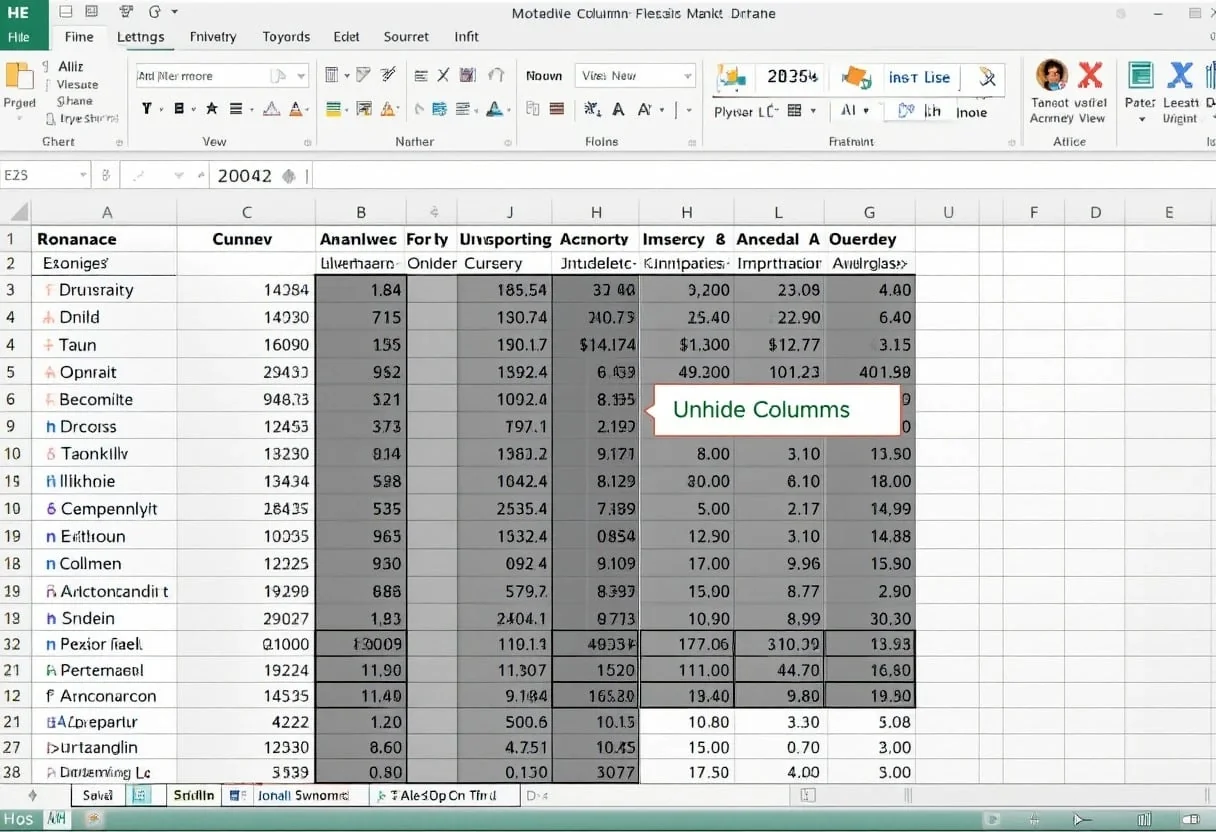
Unhide all columns by selecting the entire worksheet with Ctrl+A, right-clicking any column header, and choosing Unhide. For automation, run a VBA line such as Columns.Hidden = False.
| Method | Steps |
|---|---|
| Manual | Select all cells -> right-click column header -> Unhide |
| VBA | Run code that sets Columns.Hidden = False |
Key Takeaways
- Selecting the full sheet first is the quickest manual way to reveal every hidden column
- VBA can unhide all columns in one step for repeated cleanup tasks
- Hidden-column issues are often caused by filtered or heavily edited worksheets
Understanding the Basics of Column Visibility in Excel
Excel’s column visibility features are crucial for efficient data management and analysis. I’ll explain how to control which columns are shown or hidden, and why this matters for financial modeling and reporting.
Distinguishing Between Hide and Unhide Features
I use the hide feature to temporarily remove columns from view without deleting data. To hide columns, I select them, right-click, and choose “Hide” This is useful when I’m focusing on specific data sets or creating cleaner report views.
Unhiding columns is just as important. I can unhide specific columns by selecting the adjacent visible columns, right-clicking, and choosing “Unhide” For a quicker method, I use the “Select All” button (the rectangle at the top-left corner of the sheet) and then right-click any column header to unhide all columns at once.
The Importance of Managing Column Visibility
Managing column visibility is key for my financial analysis workflows. I often hide columns containing intermediate calculations to present a cleaner final report. This helps me focus on key metrics without overwhelming stakeholders with excess data.
I also use column visibility to create different views of the same dataset. For quarterly reviews, I might hide detailed monthly breakdowns. For in-depth analysis, I unhide all columns to examine granular data. This flexibility allows me to quickly adapt my Excel models for various reporting needs.
Navigating the Excel Interface to Manage Columns
Excel offers powerful tools for managing columns efficiently. I’ll guide you through key interface elements that streamline column operations, enhancing your data analysis workflow.
Utilizing the Home Tab for Column Operations
The Home tab is my go-to for quick column management. I frequently use the Cells group, which houses essential functions like Insert and Delete. To unhide columns, I select the adjacent visible columns, right-click, and choose “Unhide” from the context menu.
For bulk operations, I leverage the “Format” dropdown in the Cells group. This lets me hide or unhide multiple columns at once, saving precious time in large datasets.
I also rely on the “Find & Select” feature to quickly navigate to specific columns, especially in expansive spreadsheets. This tool is invaluable for pinpointing hidden columns across complex workbooks.
The Role of the Name Box in Column Selection
The Name Box, located left of the formula bar, is a powerhouse for column selection. I use it to jump to specific columns instantly. By typing a column letter, like “XFD” for the last column in Excel 2019, I can navigate massive datasets effortlessly.
For selecting multiple non-adjacent columns, I hold Ctrl while typing column letters in the Name Box. This technique is particularly useful when I need to apply formatting or calculations to specific columns scattered throughout the worksheet.
I often combine the Name Box with the Shift key to select ranges. For instance, typing “A” selects columns A through D, allowing for quick mass edits or analysis.
Working with Excel Ribbon Commands
The Excel Ribbon houses advanced column management tools I rely on daily. In the View tab, I frequently use “Freeze Panes” to keep important columns visible while scrolling through large datasets.
For complex column operations, I turn to the Data tab. Here, I can sort, filter, and group columns to analyze data from multiple angles. The “Text to Columns” feature is particularly useful for splitting column contents based on delimiters.
I also leverage the Insert tab to add calculated columns quickly. By using functions like VLOOKUP or INDEX-MATCH, I can pull data from other sheets or workbooks, enhancing my analysis capabilities without manual data entry.
Step-by-Step Techniques to Unhide Columns
I’ve found that mastering column unhiding in Excel is crucial for efficient financial analysis and data manipulation. Here are my top techniques for revealing hidden data, which I’ve honed through years of spreadsheet modeling and financial reporting.
Unhiding a Single Column Through Contextual Menus
When I need to unhide a specific column, I use the right-click method. It’s quick and precise. Here’s my process:
- Select the columns on either side of the hidden one.
- Right-click on the selected area.
- From the menu, choose “Unhide“.
This technique is especially useful when I’m working with sensitive financial data and only need to reveal certain columns. It gives me granular control over what’s visible in my spreadsheets.
Revealing All Hidden Columns Using Select All
For a comprehensive view of my data, I often need to unhide all columns at once. Here’s my go-to method:
- Click the Select All button in the top-left corner of the worksheet.
- Right-click any column header.
- Select “Unhide” from the menu.
This approach is invaluable when I’m consolidating financial reports or preparing data for machine learning models. It ensures I don’t miss any hidden information that could skew my analysis.
Adjusting Column Width for Unhiding Purposes
Sometimes, columns appear hidden due to zero width. I use this technique to resolve that:
- Select the entire worksheet.
- Hover between any two column headers until you see a double-arrow cursor.
- Double-click to auto-fit all column widths.
This method is particularly useful when I’m dealing with imported data or worksheets from other analysts. It quickly reveals any columns that might have been inadvertently set to zero width.
Resolving Issues with Double Line Indicators
When I encounter double lines between columns, it often indicates hidden columns. Here’s how I address this:
- Look for double lines between visible column headers.
- Select the columns on both sides of the double line.
- Right-click and choose “Unhide“.
This technique is crucial when I’m auditing complex financial models. It helps me ensure that all relevant data is visible and accounted for in my calculations and projections.
Advanced Excel Functions and VBA for Unhiding Columns
Excel offers powerful tools for managing hidden columns efficiently. I’ll share my expertise on using VBA macros and the Go To Special feature to streamline your workflow.
Scripting with VBA Macros to Automate Unhiding
I often use VBA macros to save time on repetitive tasks. Here’s a simple yet effective macro I’ve developed to unhide all columns in a worksheet:
Sub UnhideAllColumns()
    Cells.EntireColumn.Hidden = False
End Sub
To implement this macro:
- Press Alt + F11 to open the VBA editor
- Insert a new module
- Paste the code
- Run the macro
For more granular control, I sometimes use this macro to unhide specific columns:
Sub UnhideSelectedColumns()
    Selection.EntireColumn.Hidden = False
End Sub
This allows me to select certain columns before running the macro, giving me flexibility in my financial models.
Employing the Go To Special Dialog
The Go To Special dialog is another tool I frequently use in my financial analysis. To unhide columns with this method:
- Press F5 or Ctrl + G
- Click “Special“
- Select “Visible cells only“
- Click OK
This selects all visible cells. Then:
- Press Ctrl + Shift + 8 to select the entire worksheet
- Right-click and choose “Unhide“
I find this method particularly useful when dealing with complex spreadsheets that have multiple layers of hidden columns. It ensures I don’t miss any hidden data that could impact my financial projections.
Analytical Insights from Managing Spreadsheet Visibility
Managing visibility in Excel spreadsheets can significantly impact financial analysis and data modeling. Hidden data can lead to inaccurate insights, while proper visibility features enhance the effectiveness of analytical tools.
Impact of Hidden Data on Financial Analysis
I’ve seen hidden data cause major issues in financial reporting. Hidden columns or rows can skew calculations, leading to flawed budget forecasts or inaccurate profit margins. I always recommend unhiding all columns before performing any critical analysis.
In one case, a hidden column containing depreciation data caused a 15% overstatement of net income. To prevent such errors, I use Excel’s “Select All” feature to reveal any hidden elements quickly. This simple step has saved my team countless hours of troubleshooting.
I also leverage Excel’s custom views to create different visibility setups for various analytical needs. This allows me to switch between detailed and summary views effortlessly, enhancing my ability to spot trends and anomalies.
Enhancing Data Models with Visibility Features
I find Excel’s visibility features crucial for building robust data models. By strategically hiding or unhiding columns, I can create more intuitive interfaces for complex models without sacrificing underlying data integrity.
I often use dynamic ranges in conjunction with hidden columns to create flexible, scalable models. This technique allows me to update data sources without breaking formulas or visualizations.
For advanced analytics, I combine Power Query with strategic column visibility to streamline data preprocessing. By hiding intermediate calculation steps, I can create cleaner, more maintainable models that are easier for stakeholders to interpret and use.
Best Practices for Organizing and Safeguarding Data
I’ve found that effective data management in Excel requires a delicate balance between accessibility and security. My experience has taught me that organizing data strategically and implementing robust safeguards are crucial for maintaining data integrity and confidentiality.
Protecting Critical Data Through Column Management
I’ve learned that hiding columns isn’t enough to secure sensitive data. I recommend using the ‘Protect Sheet‘ feature for an additional layer of security. This prevents unauthorized users from unhiding or modifying hidden columns.
For highly sensitive information, I set the column width to zero. This makes the data invisible even if the sheet protection is accidentally removed. I also use custom number formatting to display asterisks instead of actual values for an extra security measure.
To ensure data integrity, I always run the Document Inspector before sharing workbooks. This tool helps me remove hidden data or personal information that might be lurking in the background.
Balancing Accessibility & Confidentiality in Sheets
I’ve developed strategies to maintain data accessibility while ensuring confidentiality. I create separate worksheets for different sensitivity levels, restricting access as needed. This allows team members to view relevant data without compromising sensitive information.
I use Excel’s data validation features to limit input options and prevent errors. This is particularly useful for financial models where accuracy is paramount. For collaborative workbooks, I implement change tracking to monitor modifications and maintain an audit trail.
To streamline data retrieval, I create custom views for different user roles. This allows quick access to relevant information without exposing unnecessary data. I also use named ranges and structured references to make formulas more readable and reduce errors in complex financial models.
Troubleshooting Common Challenges in Unhiding Columns
Unhiding columns in Excel can sometimes be tricky. I’ve encountered various issues while working with complex financial models and large datasets. Let me share some key troubleshooting techniques I’ve developed over the years.
Addressing the Inaccessibility of Column A
When Column A is hidden, it can be particularly challenging to unhide. I’ve found a reliable workaround for this situation. First, I select the entire worksheet by pressing Ctrl + A. Then, I right-click on any column header and choose “Unhide“. This method has consistently worked for me, revealing all hidden columns including Column A.
Another technique I use involves adjusting column width. I select the whole sheet, then set the column width to a specific value (e.g., 8) using the Format option in the Home tab. This effectively unhides all columns by giving them a non-zero width.
Resolving Selective Unhiding Issues
Sometimes, I need to unhide specific columns within a large dataset. In these cases, I use the “Go To Special” feature. I press Ctrl + F, click on “Special” and select “Visible cells only” This allows me to work with only the visible columns.
For unhiding multiple non-adjacent columns, I hold down the Ctrl key while selecting the columns on either side of the hidden ones. Then, I right-click and choose “Unhide” This method has saved me considerable time when dealing with complex financial models.
If these methods don’t work, I check if the workbook is protected. In such cases, I need to unprotect the sheet before making any changes.
Frequently Asked Questions
Unhiding columns in Excel can be tricky, but I’ve got some expert tips to help. Let’s dive into the most common questions I encounter about revealing hidden columns in Excel workbooks.
What are the steps to reveal all hidden columns in an Excel workbook?
To unhide all columns, I first select the entire worksheet by clicking the triangle in the top-left corner. Then I right-click any column header and choose “Unhide” from the menu. This reveals all hidden columns at once.
Which keyboard shortcut instantly unhides all columns in a Microsoft Excel worksheet?
The quickest way I unhide all columns is with the keyboard shortcut Ctrl + Shift + 0 (zero). This instantly reveals all hidden columns in the active worksheet.
When using Excel Online, how can one unhide all columns in a spreadsheet?
In Excel Online, I select all cells by pressing Ctrl + A. Then I right-click and choose “Unhide Columns” from the context menu. This works similarly to the desktop version.
Is there a formula that can uncover all hidden columns across an Excel file?
There’s no built-in formula to unhide columns. However, I often use VBA macros for this task. A simple macro can loop through all worksheets and unhide columns automatically.
In Excel 365, what is the most efficient way to unhide all columns and rows simultaneously?
In Excel 365, I use the “Reset All Page View” option. It’s located in the View tab under the Workbook Views group. This resets the view and unhides all columns and rows at once.
