
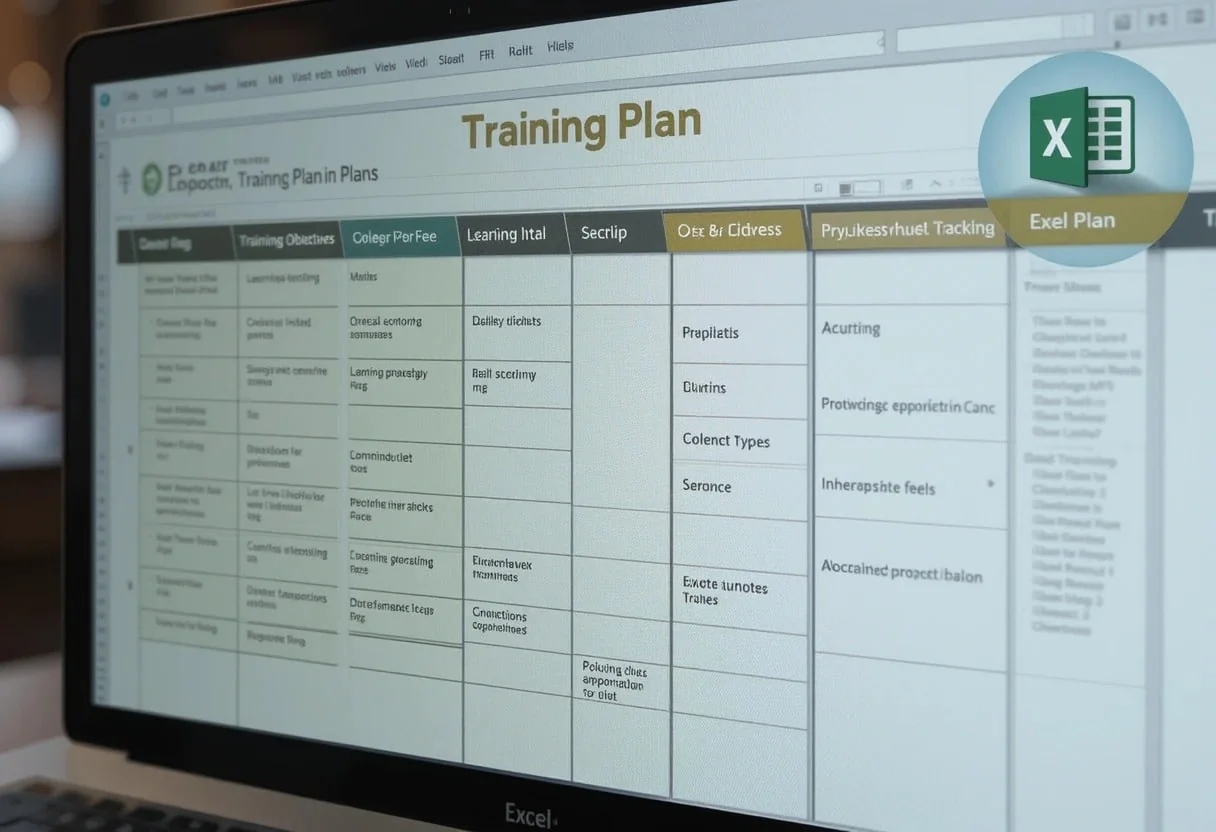
When working with an Excel training plan template, having a structured approach ensures efficient learning. Whether you’re training a team or improving your own skills, a well-designed template helps track progress, set learning objectives, and cover essential Excel functions. From basic formulas to advanced data analysis, an organized training plan makes mastering Excel easier.
I appreciate how Excel training plan templates can transform raw data into actionable insights. They allow me to analyze training effectiveness, identify skill gaps, and make data-driven decisions about resource allocation. With customizable fields for employee information, learning objectives, and progress tracking, these templates provide a comprehensive view of an organization’s training landscape.
I often recommend Excel training plan templates to clients looking to enhance their talent development strategies. The ability to quickly generate reports, visualize training metrics, and forecast future needs makes these templates invaluable for strategic workforce planning. Plus, their flexibility means they can be adapted to fit any industry or training program structure.
Key Takeaways
- Excel training plan templates can significantly reduce planning time and improve program consistency
- These templates enable data-driven decision-making for talent development strategies
- Customizable fields and reporting features make Excel templates adaptable to various industries and training needs
Understanding Your Training Needs
Identifying training needs and aligning them with organizational goals is crucial for effective employee development. I’ll explore methods to assess skill gaps and ensure training initiatives support company objectives.
Conducting a Training Needs Assessment
To begin, I recommend creating a training needs analysis template. This Excel-based tool helps quantify skill gaps across teams. I often use a simple 1-5 scale to rate current vs. Desired proficiency levels.
Key components I include:
- Employee name and role
- Core competencies for each position
- Current skill level
- Desired skill level
- Gap score (calculated automatically)
I leverage pivot tables to analyze this data, identifying trends and priority areas. This approach provides a data-driven foundation for training decisions.
For a comprehensive assessment, I also incorporate:
- Manager feedback surveys
- Performance review data
- Industry benchmark comparisons
Aligning with Organizational Goals
Once I’ve identified skill gaps, I map them to key business objectives. This ensures training efforts drive tangible value.
I create a matrix in Excel:
- Columns: Organizational goals
- Rows: Proposed training initiatives
- Cells: Impact score (1-3)
This visual tool helps prioritize programs that support multiple objectives. I use conditional formatting to highlight high-impact opportunities.
To quantify potential ROI, I build financial models projecting:
- Productivity gains
- Cost savings
- Revenue impact
These projections inform budget allocation and secure buy-in from stakeholders.
Designing the Training Plan Structure
Creating an effective training plan structure is crucial for successful employee development. I’ll focus on defining clear objectives and developing a robust curriculum to ensure optimal outcomes.
Defining Clear Training Objectives
When I design training objectives, I start by aligning them with the organization’s strategic goals. I use the SMART framework: Specific, Measurable, Achievable, Relevant, and Time-bound. This approach helps me create objectives that are clear and actionable.
For example, an objective might be: “Improve Excel pivot table skills to reduce monthly reporting time by 25% within 3 months” I always ensure objectives are quantifiable and tied to business impact.
I recommend using a simple table in the Excel training plan template to list objectives, their metrics, and target dates. This visual representation makes it easy to track progress and adjust as needed.
Developing a Robust Training Curriculum
To build a solid curriculum, I start by breaking down the objectives into specific skills and knowledge areas. I then sequence these topics logically, ensuring a smooth learning progression.
I always include a mix of theoretical concepts and practical exercises. For Excel training, I might structure the curriculum like this:
- Basic formulas and functions
- Data validation and formatting
- Pivot tables and charts
- Advanced functions (VLOOKUP, INDEX-MATCH)
- Macros and VBA basics
I use Excel spreadsheets to outline the curriculum, including session durations, resources needed, and assessment methods. This allows for easy updates and sharing with stakeholders.
Incorporating hands-on projects is key. I design real-world scenarios that employees can work through, applying their new skills to solve actual business problems.
Selecting Optimal Training Methods
I recommend tailoring training methods to your team’s needs and learning styles. My experience has shown that a mix of approaches often yields the best results.
Comparing E-Learning and On-the-Job Training
E-learning offers flexibility and scalability. I’ve found it particularly effective for teaching technical skills like Excel functions and formulas. Employees can progress at their own pace and revisit modules as needed.
On-the-job training, on the other hand, provides hands-on experience. It’s ideal for roles that require practical skills. I often use this method when training junior analysts on financial modeling techniques.
To maximize effectiveness, I suggest combining both approaches. For example:
- E-learning modules on Excel basics
- Followed by on-the-job application of those skills
This blended approach reinforces learning and improves retention rates.
Leveraging Coaching and Mentoring
Coaching and mentoring are powerful tools for developing leadership and soft skills. I’ve seen these methods dramatically improve team performance.
Coaching focuses on specific skills or goals. I use it to help analysts refine their financial forecasting abilities. A coach might work with an employee to improve their data visualization techniques in Excel.
Mentoring is broader in scope. It involves a more experienced colleague guiding a junior team member’s overall career development. I’ve found mentoring invaluable for nurturing future financial leaders.
To implement these methods effectively:
- Match mentors and mentees based on skills and career goals
- Set clear objectives for coaching relationships
- Schedule regular check-ins to track progress
Creating an Employee Training Schedule
I’ve found that a well-structured training schedule is crucial for maximizing employee development and organizational efficiency. My experience has taught me the importance of balancing training needs with business operations.
Building a Timeline for Training Activities
When I build a training schedule, I start by identifying key milestones and working backward. I use Excel’s NETWORKDAYS function to calculate business days between start and end dates, ensuring I account for holidays and weekends.
Here’s a sample timeline structure I often use:
- Needs assessment: 1-2 weeks
- Curriculum development: 2-4 weeks
- Resource allocation: 1 week
- Training delivery: 4-8 weeks
- Evaluation: 1-2 weeks
I create a Gantt chart in Excel using conditional formatting to visualize the timeline. This helps me spot potential bottlenecks and adjust as needed.
Balancing Workload and Training
Striking the right balance between regular work and training is critical. I use a capacity planning model in Excel to forecast resource availability.
My approach includes:
- Calculating total available hours per employee
- Subtracting time for essential job functions
- Allocating remaining time for training activities
I often employ Monte Carlo simulations to account for variability in workload and training duration. This helps me create a more robust schedule that can adapt to real-world uncertainties.
To track progress, I build a dashboard using Power Query to pull data from various sources, giving me real-time insights into training activities and their impact on productivity.
Excel Templates for Training Plans
I’ve found Excel templates to be invaluable tools for creating effective training plans. They offer a structured approach to organizing and tracking employee development initiatives.
Utilizing Microsoft Excel for Training Schedules
I rely heavily on Microsoft Excel for creating training schedules. Its powerful features allow me to build dynamic calendars and Gantt charts that visualize training timelines. I use conditional formatting to highlight important dates and color-code different training types.
For complex schedules, I leverage Excel’s PivotTables to analyze training hours by department or skill area. This helps me identify gaps and optimize resource allocation.
I often incorporate dropdown menus using Data Validation to standardize input and reduce errors. This is particularly useful for assigning trainers or categorizing training activities.
Customizing Employee Training Plan Templates
When customizing employee training plan templates in Excel, I focus on tailoring the layout to specific organizational needs. I start by defining key metrics and KPIs that align with company goals.
I use named ranges to create dynamic reporting areas that update automatically as new data is entered. This allows for real-time tracking of training progress and effectiveness.
To enhance usability, I often add macro buttons for common tasks like generating reports or updating status. I also implement data validation rules to ensure consistency in data entry across multiple users.
For financial tracking, I incorporate formulas to calculate training costs and ROI. This provides a clear view of the investment and expected returns from each training initiative.
Measuring Employee Training Effectiveness
Evaluating the impact of training programs is crucial for optimizing resource allocation and ensuring employee development aligns with organizational goals. I’ll outline key strategies for creating metrics and analyzing outcomes to gauge training effectiveness.
Creating Metrics for Training Evaluation
To measure training effectiveness, I recommend developing a robust set of Key Performance Indicators (KPIs). I typically start with pre-training assessments to establish baselines. This might involve skills tests, productivity measures, or job satisfaction surveys.
Post-training, I track changes in these metrics:
- Productivity: % increase in output or efficiency
- Error rates: Reduction in mistakes or quality issues
- Time-to-competency: How quickly employees master new skills
- Return on Investment (ROI): Financial gains vs. Training costs
I often use Excel’s Data Analysis ToolPak to perform t-tests, comparing pre- and post-training scores. This helps determine if improvements are statistically significant.
For long-term tracking, I create dashboards using Power BI or Excel’s PivotTables. These visualize trends over time, allowing for quick identification of training impacts across departments or job roles.
Analyzing Feedback and Outcomes
Quantitative data tells only part of the story. I always incorporate qualitative feedback to get a fuller picture of training effectiveness. Here’s my approach:
- Survey participants: I use Likert scales to gauge satisfaction and perceived value.
- Conduct interviews: I speak with managers to assess behavioral changes.
- Track career progression: I monitor promotions or role expansions post-training.
To analyze this mix of data, I employ text analysis techniques in Excel, such as sentiment scoring for open-ended responses. I then correlate this with quantitative metrics using regression analysis.
I pay close attention to job satisfaction scores. A well-designed training program should boost engagement and reduce turnover. I use predictive modeling to forecast potential retention improvements based on training participation.
By combining these approaches, I create a comprehensive view of training effectiveness. This informs future program design and helps justify training budgets to stakeholders.
Advanced-Data Analysis for Training Success
Using advanced data analysis techniques can greatly enhance training outcomes. By leveraging predictive models and forecasting methods, I can make more informed decisions about employee development.
Applying Predictive Models to Training Needs
I use predictive models to identify which employees are most likely to benefit from specific training programs. This approach helps me optimize resource allocation and improve overall training effectiveness.
I start by collecting historical data on employee performance, skills, and past training outcomes. Then, I build a machine learning model using tools like Python or R. This model analyzes patterns and predicts which employees are likely to succeed in different training programs.
In Excel, I create a dashboard to visualize these predictions. I use pivot tables and conditional formatting to highlight high-potential candidates for each training type. This makes it easy for managers to quickly identify who should be prioritized for upcoming sessions.
Forecasting Employee Growth and Potential
To forecast employee growth, I combine historical performance data with external factors like market trends and company goals. This helps me predict future skill needs and plan training accordingly.
I use time series analysis in Excel to identify growth trends for different roles and departments. With the FORECAST.ETS function, I can project future performance based on past data. I also factor in seasonality and other cyclical patterns that might affect employee growth.
To visualize these forecasts, I create interactive charts using Excel’s charting tools. This allows stakeholders to easily see projected skill gaps and plan proactive training initiatives. By linking these charts to live data sources, I ensure our growth projections stay up-to-date as new information becomes available.
Frequently Asked Questions
Excel training plans for financial analysts require careful design and implementation. I’ve found that incorporating advanced analytics, quantitative modeling, and strategic decision-making elements is crucial for success. Let’s explore some key questions about creating effective Excel training plans.
What are the critical components of an effective Excel training plan for financial analysts?
An effective Excel training plan for financial analysts must include advanced formula usage, data visualization techniques, and financial modeling best practices. I always emphasize pivot tables, VLOOKUP functions, and scenario analysis tools. It’s crucial to cover macros and VBA for automation as well.
How can I design a robust employee training schedule in Excel that incorporates quantitative modeling techniques?
I structure my training schedule s with progressively complex modeling exercises. I start with basic financial statement analysis and move to discounted cash flow models. Each week, I introduce new Excel functions and modeling concepts. I use conditional formatting to highlight key dates and deadlines in the schedule.
Could you delineate the process of creating a dynamic Excel training plan that adapts to multifaceted financial scenarios?
To create a dynamic training plan, I begin by setting up a dashboard with dropdown menus for different financial scenarios. I use nested IF statements to adjust the training content based on selected parameters. This allows trainees to explore various market conditions and their impact on financial models.
Can you expound on the best practices for integrating advanced analytics into an Excel-based training program?
I integrate advanced analytics by introducing statistical functions like FORECAST.ETS for time series analysis. I teach trainees to use the Analysis ToolPak for regression modeling. Power Query is essential for data cleaning and transformation. I also cover Power Pivot for handling large datasets and creating complex relationships.
What methodologies should be employed to evaluate the efficacy of an Excel training plan from a data science perspective?
To evaluate training efficacy, I implement pre and post-training assessments using Excel forms. I analyze the results using descriptive statistics and hypothesis testing. I create visualizations like box plots to show skill improvement. Machine learning algorithms can help identify patterns in trainee performance and customize future training.
In configuring an Excel training plan, how can we automate and streamline data collection and analysis for strategic decision-making?
I use Power Query to automate data collection from various sources. I set up dynamic named ranges to ensure formulas update automatically as new data comes in. Power Pivot helps create interactive dashboards for quick strategic insights. I also teach trainees to use Solver for optimization problems in decision-making scenarios.
