
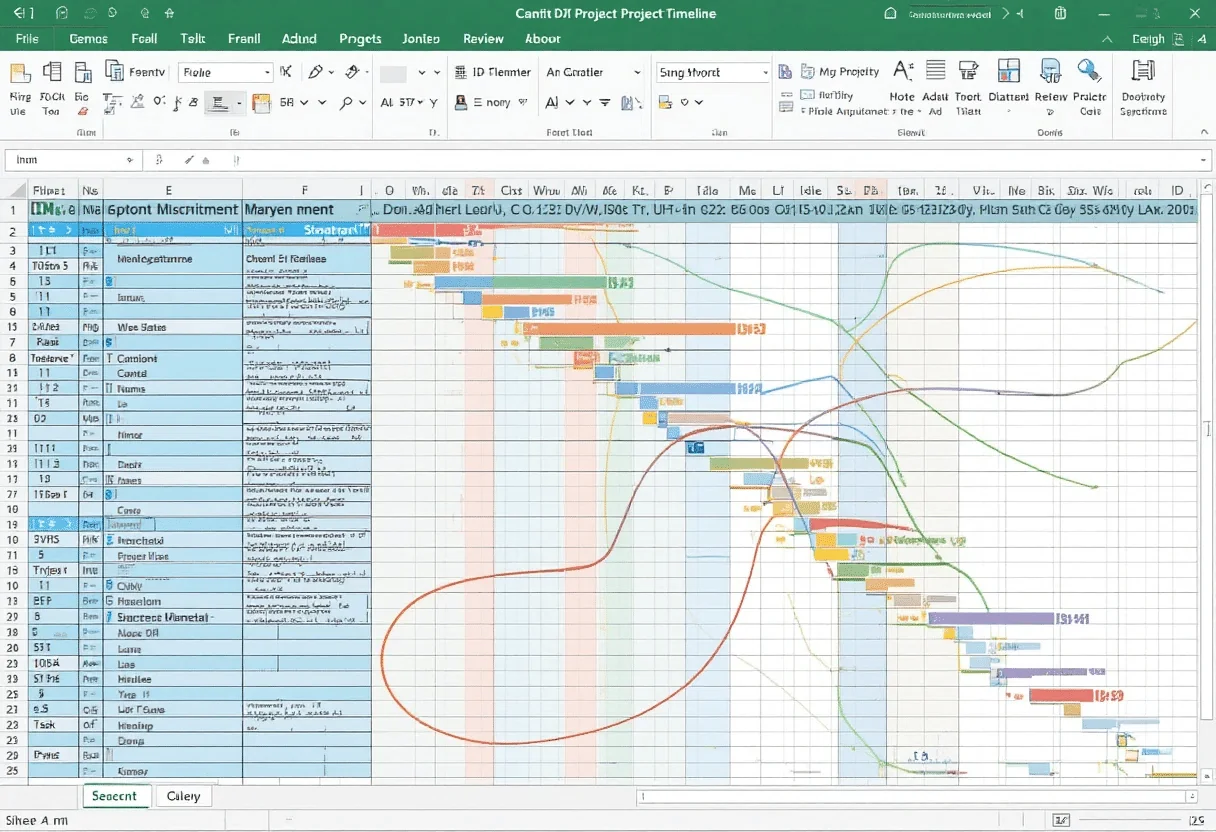
When working with Excel Templates for Project Management, you can streamline planning, tracking, and collaboration with ready-made spreadsheets. These templates help manage tasks, deadlines, budgets, and resources efficiently, ensuring projects stay on schedule. Whether you’re handling a small team or a large project, Excel provides customizable templates for Gantt charts, to-do lists, and progress reports, making project management simpler and more organized.
I rely on Excel’s flexibility to create custom solutions for various project needs. From Gantt charts to risk assessments, these templates provide a solid foundation for effective project oversight. They allow me to analyze project performance, manage resources, and make data-driven decisions quickly.
I’ve found that the right Excel template can significantly boost productivity and accuracy. Whether you’re a seasoned project manager or just starting, these tools can help you stay on top of deadlines, budgets, and team performance. Let’s dive into some of the best Excel templates for project management and how to leverage them for success.
Key Takeaways
- Excel templates streamline project planning and tracking
- Customizable templates enhance decision-making with data-driven insights
- Advanced Excel features can automate complex project management tasks
Core Principles of Project Management
Project management relies on key principles to ensure success. These principles guide projects from start to finish, aligning teams and resources while fostering clear communication.
Understanding Project Life Cycle
I’ve found that grasping the project life cycle is crucial for effective management. This cycle typically includes initiation, planning, execution, monitoring, and closure phases. Each phase has distinct objectives and deliverables.
In the initiation phase, I define the project’s scope and feasibility. Planning involves creating detailed schedules and budgets. During execution, I oversee task completion and resource allocation. Monitoring requires tracking progress and making adjustments. The closure phase includes evaluating outcomes and documenting lessons learned.
I use Excel templates to track these phases, creating Gantt charts and milestone trackers. This helps me visualize the project timeline and ensure all stages are progressing as planned.
Aligning Stakeholders and Resources
I know that aligning stakeholders and resources is vital for project success. I start by identifying key stakeholders and their interests. This includes team members, clients, and upper management.
I use stakeholder analysis matrices in Excel to map out influence and interest levels. This helps me prioritize communication and engagement strategies.
Resource allocation is another critical aspect. I create detailed resource plans, considering both human and material resources. Using pivot tables, I can quickly analyze resource utilization across different project phases.
I also implement budget templates to track expenses and ensure we stay within financial constraints. This allows for real-time financial oversight and helps prevent cost overruns.
Implementing Effective Communication Strategies
Clear communication is the backbone of successful project management. I establish communication protocols at the project’s outset, detailing how and when information will be shared.
I create communication matrices in Excel, outlining who needs what information and when. This ensures all stakeholders receive timely updates relevant to their roles.
Regular status meetings are essential. I prepare data-driven reports using Excel dashboards, showcasing key performance indicators and project milestones. These visual aids help convey complex information quickly and effectively.
I also leverage project management software integrated with Excel for real-time updates. This allows team members to access the latest project data, fostering transparency and collaboration.
Advanced Excel Techniques for Project Management
I’ve developed powerful Excel techniques to elevate project management. These methods leverage Excel’s robust features for efficient planning, tracking, and analysis. Let’s explore how to build dynamic Gantt charts, perform critical path analysis, and master essential formulas.
Building Dynamic Gantt Charts
I often use Excel to create dynamic Gantt charts for visualizing project timelines. Here’s my approach:
- Set up a task list with start and end dates.
- Create a timeline using the WEEKDAY function.
- Use conditional formatting to highlight task durations.
I apply the NETWORKDAYS function to calculate working days between dates, excluding weekends and holidays. This ensures accurate scheduling.
For linking dependent tasks, I use the MAX function:
=MAX(PreviousTaskEndDate, CurrentTaskStartDate)This formula automatically adjusts start dates based on predecessors’ completion.
To make the chart dynamic, I incorporate data validation for easy task updates. I also add sparklines to show progress at a glance.
Critical Path Analysis using Excel
I’ve found Excel invaluable for critical path analysis. Here’s my process:
-
List all tasks with durations and dependencies.
-
Calculate early start (ES) and early finish (EF) dates:
- ES = Latest EF of predecessors
- EF = ES + Duration
-
Calculate late start (LS) and late finish (LF) dates:
- LF = Earliest LS of successors
- LS = LF – Duration
-
Determine float:
- Float = LS – ES
I use nested IF statements to handle multiple predecessors:
=IF(AND(A2="",B2=""), C2, MAX(A2,B2))This formula finds the maximum finish date among predecessors.
To identify the critical path, I apply conditional formatting to highlight tasks with zero float. This visually maps out the project’s most crucial sequence.
Mastering Excel Formulas and Functions
I rely on several key formulas for project management:
- SUMIFS for budget tracking:
=SUMIFS(ExpenseColumn, CategoryColumn, "Labor", DateColumn, ">="&StartDate, DateColumn, "<="&EndDate)- INDEX-MATCH for dynamic lookups:
=INDEX(DataRange, MATCH(1, (Criteria1Column=Criteria1)*(Criteria2Column=Criteria2), 0), ResultColumn)- FORECAST.ETS for trend analysis:
=FORECAST.ETS(FutureDate, HistoricalValues, DateRange)I use pivot tables to summarize project data quickly to create calculated fields for KPIs like cost variance:
=ActualCost - PlannedCostLastly, I employ data validation for dropdown lists, ensuring consistent data entry across the project team.
Designing Project Trackers and Timelines
I’ve found that effective project management hinges on robust tracking and timeline tools. I rely on Excel to create powerful solutions that drive project success through data-driven insights and precise forecasting.
Creating Comprehensive Project Timelines
I always start by building a dynamic project timeline template in Excel. This allows me to visualize the project’s critical path and identify potential bottlenecks. I use conditional formatting to highlight key milestones and deadlines, ensuring they’re easily visible at a glance.
To enhance the timeline’s functionality, I incorporate:
- Gantt charts for visual representation
- Automated date calculations using the NETWORKDAYS function
- Progress tracking with completion percentages
- Resource allocation columns
I’ve found that linking task dependencies using Excel’s formula capabilities significantly improves timeline accuracy. This approach enables real-time updates and facilitates quick adjustments when project parameters change.
Developing Project Tracker Systems
For comprehensive project tracking, I design multi-project tracking templates that consolidate data from various initiatives. I leverage Excel’s pivot tables and Power Query to create dynamic dashboards that provide instant insights into project health.
Key components I include in my tracker systems are:
- Task status indicators (e.g., Not Started, In Progress, Completed)
- Budget vs. Actual cost comparisons
- Risk assessment matrices
- Resource utilization metrics
I often use Excel’s Data Validation feature to create dropdown lists for standardized data entry. This ensures consistency across projects and simplifies reporting. To automate routine tasks, I develop custom VBA macros that generate reports and send email alerts for upcoming deadlines or budget overruns.
Budgeting and Financial Modeling for Projects
I find that robust budgeting and financial modeling are key to project success. These tools help me forecast costs, track expenses, and make data-driven decisions throughout the project lifecycle.
Crafting Detailed Budget Templates
When I create budget templates, I start with a comprehensive breakdown of costs. I include categories like labor, materials, equipment, and overhead. I always add columns for estimated and actual costs to track variances.
For complex projects, I use a multi-tab Excel workbook. This allows me to dedicate separate sheets to different cost centers or project phases. I link these tabs to a summary sheet for a high-level view.
I incorporate formulas to automatically calculate totals and percentages. SUM(), SUMIF(), and VLOOKUP() are my go-to functions for this. I also use conditional formatting to highlight over-budget items.
Building Financial Models with Excel
To build powerful financial models, I leverage Excel’s advanced features. I start with a forecasting model that projects revenues and expenses over the project timeline.
I use data tables and scenario analysis to test different assumptions. This helps me understand how changes in key variables might impact the project’s financial outcomes.
For cash flow modeling, I create a monthly breakdown. I use IF() statements to account for timing differences between cash inflows and outflows. This gives me a clear picture of liquidity needs throughout the project.
I also build in sensitivity analysis using Excel’s Goal Seek and Solver tools. This allows me to quickly adjust inputs and see how they affect key financial metrics like NPV or IRR.
Analyzing Project Performance
Project performance analysis is crucial for successful project management. I’ll explore how to leverage advanced dashboard templates and quantitative techniques to gain data-driven insights into project execution and status.
Utilizing Advanced Dashboard Templates
I recommend using project management dashboard templates to visualize key performance indicators. These dashboards offer a quick snapshot of project health. I often create custom Excel dashboards with dynamic charts and slicers to track progress.
To build an effective dashboard:
- Identify 5-7 critical metrics
- Use conditional formatting for visual alerts
- Incorporate data validation for user inputs
- Link to live data sources when possible
I find that color-coded KPI tiles work well for executives. For team leads, I include more detailed Gantt charts and resource allocation views.
Quantitative Techniques for Performance Metrics
To truly understand project performance, I go beyond basic metrics. I use advanced Excel functions and statistical methods to uncover insights.
Some key techniques I employ:
- Earned Value Analysis (EVA) using SUMIF and VLOOKUP
- Monte Carlo simulations for risk assessment
- Regression analysis to identify performance drivers
I often create S-curves to track cumulative progress against baselines. This helps me spot deviations early.
For predictive insights, I build forecasting models using Excel’s Analysis ToolPak. These help estimate completion dates and final costs based on current trends.
Risk and Resource Management Strategies
Managing risks and resources effectively is crucial for project success. I’ll outline key strategies to identify potential issues and optimize resource allocation using Excel-based tools.
Implementing Risk Management Frameworks
I recommend using a risk management plan template in Excel to track and mitigate project risks. This tool helps me identify, assess, and prioritize potential issues.
I start by listing all possible risks in a spreadsheet, assigning each a probability and impact score. Using Excel’s conditional formatting, I create a visual risk matrix to highlight high-priority items.
For each risk, I detail specific mitigation strategies and assign responsible team members. I use data validation to ensure consistency in risk categories and status updates.
To monitor risks over time, I create a dashboard using pivot tables and charts. This allows me to quickly spot trends and adjust our risk management approach as needed.
Optimizing Resource Management
Effective resource management is key to project success. I use Excel to create a comprehensive resource allocation plan that tracks team member availability, skills, and workload.
I start with a master list of all resources, including their roles, skills, and capacity. Using Excel’s VLOOKUP and INDEX-MATCH functions, I link this data to our project task list.
To visualize resource utilization, I create a heat map using conditional formatting. This helps me quickly identify over- or under-allocated team members.
I also use Excel’s Solver add-in to optimize resource assignments based on constraints like skill requirements and project deadlines. This data-driven approach ensures we’re making the most of our team’s capabilities.
Customizing Excel for Strategic Advantage
Excel’s customization features offer powerful tools for enhancing strategic planning and analysis. I’ve found that tailoring Excel to specific project management needs can dramatically improve decision-making and efficiency.
Leveraging Excel for Scenario Analysis
I always recommend using Excel’s data tables and goal-seek functions for robust scenario analysis. By setting up a simple two-variable data table, I can quickly model how changes in key inputs affect project outcomes. For example, I might analyze how variations in resource allocation and project duration impact overall costs.
To get started, I create a summary table with my base case assumptions. Then I use the =TABLE() function to generate a matrix of results for different input combinations. This approach lets me identify optimal strategies and potential risks at a glance.
For more complex scenarios, I turn to Excel’s Solver add-in. It’s incredibly useful for optimizing resource allocation across multiple projects while respecting various constraints.
Automation and Efficiency with Excel Macros
Excel macros have revolutionized my project management workflow. I use VBA to automate repetitive tasks, saving hours of manual work each week. One of my favorite macros automatically updates project schedules based on the latest resource availability data.
To create effective macros, I start by recording common actions, and then edit the VBA code to make them more flexible. For instance, I’ve built a macro that generates custom project status reports with just one click.
I also leverage macros for data cleansing and validation. A well-designed macro can quickly standardize input formats and flag potential errors, ensuring data integrity across all project templates.
Advanced users can create entire project management systems within Excel using UserForms and custom ribbon interfaces. This approach offers tailored solutions without the need for expensive specialized software.
Frequently Asked Questions
Excel offers powerful tools for project management. I’ll cover key techniques for dashboards, tracking systems, financial forecasting, timeline monitoring, performance analysis, and data-driven strategies.
How can I utilize Excel to set up an efficient project management dashboard?
I recommend starting with a clear layout and well-organized data. Use conditional formatting to highlight key metrics and deadlines. Incorporate charts and graphs to visualize progress. I often use sparklines for quick trend analysis and pivot tables to summarize data across multiple projects.
What are the key components for constructing a robust project tracking system in Excel?
In my experience, a solid tracking system needs a few core elements. I always include a task list with start/end dates, assigned resources, and completion status. I use named ranges to make formulas more readable. VLOOKUP or INDEX-MATCH functions help link related data across sheets.
Could you outline the process for integrating financial forecasting into an Excel project plan template?
I start by creating a separate sheet for financial data, where I input historical costs and use FORECAST or TREND functions to project future expenses. These forecasts are then linked to the main project timeline. To enhance analysis, I often add scenario modeling using Data Tables to evaluate different cost outcomes efficiently.
What advanced Excel functions are most effective for monitoring multiple project timelines and resources?
For timeline tracking, I rely heavily on GANTT charts created with stacked bar charts. I use the NETWORKDAYS function to calculate working days between milestones. For resource allocation, I build custom functions with VBA to optimize assignments across projects.
How can I leverage pivot tables for in-depth project performance analysis within Excel?
Pivot tables are my go-to for analyzing project data. I create a master data sheet and use pivot tables to slice by various dimensions like task status, team member, or project phase. I add calculated fields for KPIs like burndown rate or cost variance.
What are the best practices for implementing data-driven project management strategies using Excel templates?
I prioritize automating data collection by using Power Query to import and clean data from various sources. I create dynamic dashboards that update automatically and implement data validation to ensure consistency in data entry.
