
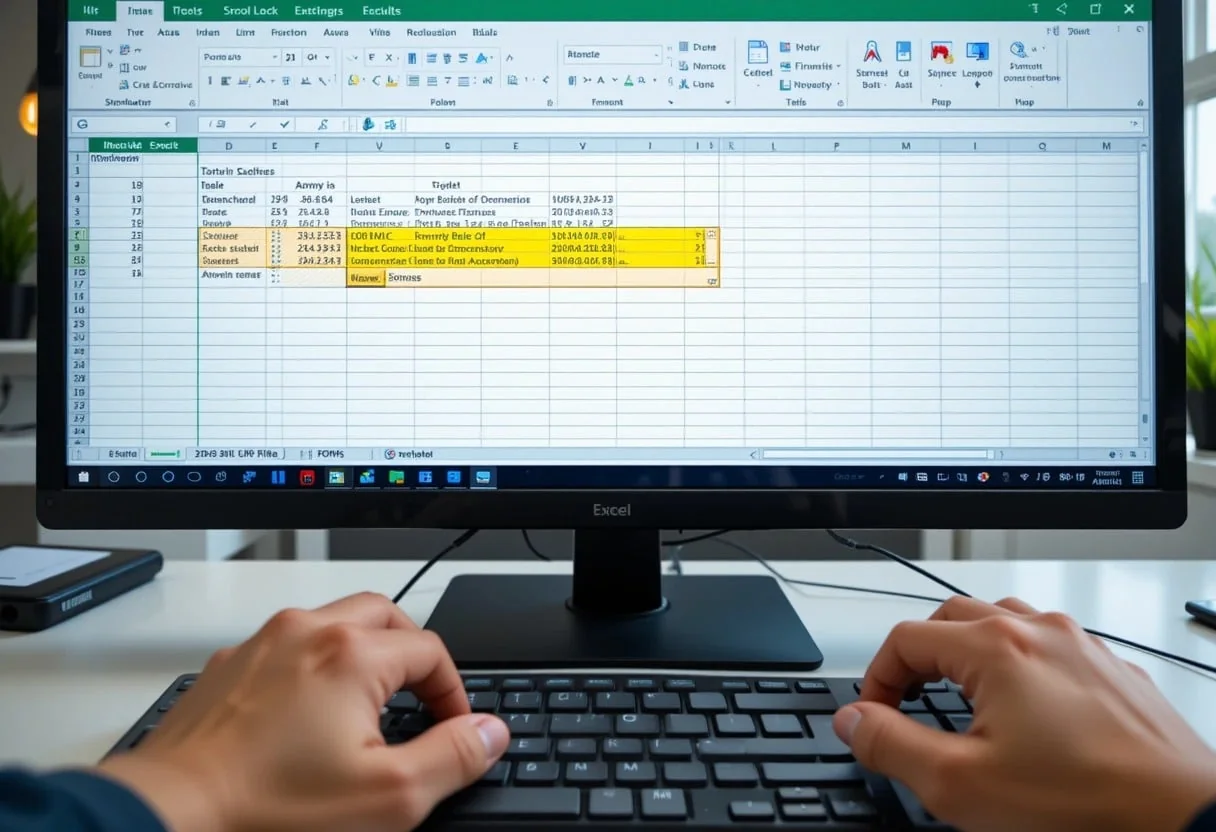
If your Excel arrow keys scrolling unexpectedly moves the entire sheet instead of switching cells, the Scroll Lock feature is likely enabled. This common issue can disrupt your workflow, but it’s easy to fix—simply press the Scroll Lock key on your keyboard or disable it through the on-screen keyboard if your device doesn’t have one.
I’ve found that many users are unaware of how Scroll Lock affects Excel’s navigation. When enabled, it changes how the arrow keys function, causing them to scroll the entire worksheet instead of moving between cells. This can be particularly annoying when working with large datasets or complex financial models where precise cell navigation is crucial.
Fortunately, there are several ways to resolve this issue and get your arrow keys working correctly again. Whether you’re using a desktop computer or a laptop without a dedicated Scroll Lock key, I’ll share some quick fixes to help you regain control of your Excel navigation and boost your productivity.
Key Takeaways
- Excel’s Scroll Lock feature can cause arrow keys to scroll instead of move between cells
- Disabling Scroll Lock typically resolves arrow key navigation issues in Excel
- Advanced Excel users can optimize worksheet navigation for improved financial analysis efficiency
Understanding Scroll Lock in Excel
Scroll Lock in Excel plays a crucial role in how we navigate spreadsheets. I’ve found it can significantly impact productivity when working with large datasets. Let’s explore its history and how to identify when it’s active.
History and Functionality of Scroll Lock
Scroll Lock originated in the early days of computing as a way to control cursor movement. In Excel, it serves a specific purpose. When activated, arrow keys scroll the entire worksheet instead of moving the cell selection. This can be helpful when viewing large datasets without changing the active cell.
I often use Scroll Lock when analyzing financial models spanning multiple screens. It allows me to quickly scan through rows of data while keeping my formulas intact. However, it can be confusing if activated accidentally.
The Scroll Lock key is typically located on the upper right of most keyboards, near the Print Screen key. On some laptop keyboards, it may require pressing the Fn key in combination with another key.
Identifying Scroll Lock Activation on the Status Bar
Excel provides a visual indicator when Scroll Lock is active. I always check the Status Bar at the bottom of the Excel window. When Scroll Lock is on, you’ll see “Scroll Lock” displayed there.
If you don’t see this indicator, it might be hidden. To show it:
- Right-click on the Status Bar
- Look for “Scroll Lock” in the menu
- Click to enable the indicator
I recommend keeping this indicator visible, especially when working on shared workbooks. It helps prevent confusion if arrow keys seem to behave unexpectedly.
Turning off Scroll Lock is simple. Just press the Scroll Lock key again. If your keyboard lacks this key, you can use the Windows on-screen keyboard to toggle it.
Controlling Worksheet Navigation
Excel offers powerful tools for moving around spreadsheets efficiently. I’ll explain how to use arrow keys effectively and the impact of Scroll Lock on navigation. These techniques can significantly boost productivity when working with large datasets.
Using Arrow Keys to Navigate Cells
I rely heavily on arrow keys for quick cell-to-cell movement in Excel. Pressing an arrow key moves the active cell one step in that direction. This is essential for rapid data entry and analysis.
For faster navigation, I combine arrow keys with modifier keys:
- Ctrl + Arrow: Jumps to the edge of the current data region
- Shift + Arrow: Extends the selection by one cell
- Ctrl + Shift + Arrow: Extends selection to the last cell with data
These shortcuts are crucial when I’m building financial models or analyzing large datasets. They save time and reduce errors compared to mouse navigation.
Impact of Scroll Lock on Navigation
Scroll Lock can dramatically change how arrow keys function in Excel. When activated, it causes arrow keys to scroll the entire worksheet instead of moving between cells.
I’ve found this can be confusing for many users, especially when accidentally enabled. To check if Scroll Lock is on:
- Look for “Scroll Lock” on Excel’s status bar
- If visible, Scroll Lock is active
To toggle Scroll Lock:
- Press the Scroll Lock key (if available)
- Use the on-screen keyboard on Windows
In my experience, disabling Scroll Lock usually resolves issues with arrow key navigation. It’s a simple fix that can save hours of frustration when working on complex financial models.
Troubleshooting Scroll Lock Issues
Excel’s arrow key scrolling can be tricky to manage. I’ll walk you through disabling Scroll Lock and offer alternatives for keyboards without this key.
Steps to Disable Scroll Lock
I can tell you that Scroll Lock issues are common. Here’s how I fix them:
- Look for the Scroll Lock key on your keyboard. It’s usually near the Print Screen key.
- Press the Scroll Lock key once. This should toggle it off.
- Check Excel’s status bar. The Scroll Lock indicator should disappear.
If these steps don’t work, I use the On-Screen Keyboard:
- Press Win + R, type “osk“, and hit Enter.
- Click the ScrLk button on the virtual keyboard.
For Mac users, the process is different. Excel for Mac doesn’t show Scroll Lock status in the status bar. You’ll need to test the arrow keys to check if it’s enabled.
Alternatives for Keyboards without a Scroll Lock Key
Some keyboards, especially on laptops, lack a dedicated Scroll Lock key. I’ve found these workarounds helpful:
- Use the Fn + S key combination. This often serves as a Scroll Lock toggle.
- On certain laptops, try Fn + C or Fn + K.
- For Apple keyboards, press F14 or Shift + F14.
If these don’t work, I recommend using Excel’s On-Screen Keyboard. It’s a reliable method to toggle Scroll Lock without a physical key.
Advanced Solutions for Scroll Lock
I’ve discovered some powerful techniques to enhance Scroll Lock functionality in Excel. These methods can significantly boost productivity and streamline workflow for financial analysts and data scientists working with large datasets.
Automating Scroll Lock Functions
I often use AutoHotkey to automate Scroll Lock toggling. This tool allows me to create custom scripts that activate or deactivate Scroll Lock with a single keystroke. For instance, I’ve set up a hotkey that toggles Scroll Lock when I press Ctrl+Shift+S. This saves me time when switching between scrolling and cell selection modes.
I’ve also integrated Scroll Lock automation into my Excel templates. Using VBA, I’ve created a macro that automatically disables Scroll Lock when opening specific workbooks. This ensures I always start with the default arrow key behavior when working on financial models.
Developing Custom Add-Ins for Control Management
I’ve developed a custom Excel add-in to manage Scroll Lock more efficiently. My add-in includes a ribbon interface with buttons to toggle Scroll Lock on and off. It also displays the current Scroll Lock status prominently, eliminating any confusion about the active mode.
I’ve incorporated advanced features like automatic Scroll Lock disabling when entering specific named ranges or sheets in my financial models. This ensures that I can quickly navigate through my data without accidentally scrolling. The add-in also logs Scroll Lock usage, helping me analyze my work patterns and optimize my Excel workflows for maximum efficiency.
Optimizing Excel for Financial Analysis
Excel is a powerful tool for financial analysis when used effectively. I’ll share some key strategies to enhance your Excel workflows for complex financial modeling and corporate finance tasks.
Enhancing Data Navigation with Financial Models
I always start by setting up a clear structure for my financial models. I use named ranges to make formulas more readable and easier to audit. For large datasets, I create a dedicated “Data ” tab and use VLOOKUP or INDEX-MATCH functions to pull information into my analysis sheets.
I leverage Excel’s data validation features to create dropdown menus for scenario analysis. This allows me to quickly switch between different assumptions and see how they impact my financial projections.
To speed up navigation, I use keyboard shortcuts like Ctrl+Arrow keys to move quickly between data points. I also create custom keyboard shortcuts for frequently used formulas or macros using the Quick Access Toolbar.
Building Robust Excel Workbooks for Corporate Finance
When building Excel workbooks for corporate finance, I focus on scalability and error prevention. I use circular references sparingly and always with iterative calculations enabled to avoid potential issues.
I implement data tables for sensitivity analysis, allowing me to see how changes in key variables affect financial outcomes. This is crucial for risk assessment and decision-making.
To ensure accuracy, I use Excel’s built-in auditing tools like “Trace Precedents” and “Trace Dependents” to visualize formula relationships. I also leverage conditional formatting to highlight important data points or potential errors.
For complex financial statements, I create a separate assumptions tab where all inputs are centralized. This makes it easier to update projections and ensures consistency across the model.
Leveraging Excel Hotkeys
Excel can be a powerful tool for data science when used correctly. I’ve found it invaluable for integrating predictive models and extracting insights from large datasets in my work.
Integrating Machine Learning Models into Excel
I often use Excel to implement machine learning models for financial forecasting. The Data Analysis ToolPak is my go-to for regression analysis. I create custom functions to run more complex algorithms like decision trees or neural networks.
For time series forecasting, I combine Excel’s built-in forecasting functions with more advanced techniques. I use the FORECAST.ETS function as a baseline, then enhance it with custom VBA code to implement ARIMA models.
To validate my models, I split my data into training and testing sets using Excel’s RAND function. I then use pivot tables to quickly calculate performance metrics like RMSE or MAE.
Extracting Insights from Large Data Sets
When dealing with large datasets, I rely heavily on Excel’s Power Query. It allows me to connect to various data sources, clean the data, and perform initial transformations.
I create interactive dashboards using pivot tables and charts. These help me identify trends and anomalies quickly. For deeper analysis, I use Excel’s data modeling features to create relationships between tables.
To handle millions of rows, I often use PowerPivot. It lets me work with much larger datasets than standard Excel. I create DAX measures for complex calculations that would be difficult with regular formulas.
I also use Excel’s built-in statistical functions for hypothesis testing and confidence intervals. This helps me validate my findings and ensure they’re statistically significant before presenting them to stakeholders.
Excel Best Practices and Actionable Takeaways
I’ve found that mastering Excel’s advanced features can significantly boost productivity and analytical capabilities. Let’s explore some key strategies for leveraging formulas and automating tasks.
Formulas and Functions for Strategic Guidance
I rely heavily on Excel’s powerful formulas for decision-making. The SUMIF and VLOOKUP functions are essential for data aggregation and retrieval. For instance, I use SUMIF to quickly total sales by region or product category.
VLOOKUP helps me pull relevant data from other sheets or workbooks. I often combine it with INDEX and MATCH for more flexible lookups. These functions are crucial for building dynamic financial models.
For scenario analyses, I turn to Excel’s Data Table feature. It allows me to see how changing variables affect outcomes. This is invaluable for sensitivity analysis in financial modeling.
I also recommend mastering array formulas. They can perform complex calculations across multiple cells, reducing the need for helper columns.
Creating Macros for Efficiency and Automation
Macros are a game-changer for automating repetitive tasks in Excel. I’ve created macros to format financial statements, update data connections, and generate custom reports with a single click.
To get started with macros, I suggest using the macro recorder. It’s an easy way to capture a series of actions and convert them into VBA code. Once recorded, I often edit the code to make it more flexible and robust.
For more advanced automation, I write custom VBA functions. These can perform complex calculations or data manipulations not possible with built-in formulas. I’ve used them to create custom financial ratios and automate data cleaning processes.
When building macros, I always include error handling. This ensures the macro can gracefully handle unexpected inputs or errors, preventing crashes and data issues.
Frequently Asked Questions
I’ve encountered numerous Excel arrow key issues in my financial modeling work. These questions address common problems and solutions I’ve implemented to maintain efficient spreadsheet navigation and analysis.
What are the steps to disable Scroll Lock in Excel to allow cell navigation with arrow keys?
To disable Scroll Lock, I first check if it’s on by looking at the status bar. If it’s not visible, I customize the status bar to display Scroll Lock. Then I press the Scroll Lock key on my keyboard to turn it off.
For laptops without a dedicated Scroll Lock key, I use the Fn key combination or the on-screen keyboard to disable it.
How can I troubleshoot my Excel worksheet when arrow keys cause scrolling instead of moving between cells?
When I face this issue, I first verify if Scroll Lock is enabled. If it is, I disable it using the methods mentioned above. If the problem persists, I check for any active filters or frozen panes that might affect navigation.
I also ensure no macros or VBA code are interfering with normal arrow key functionality.
Is there a keyboard shortcut to release Scroll Lock for Excel users without a Scroll Lock key?
For computers without a physical Scroll Lock key, I use the on-screen keyboard. I access it by typing “osk” in the Windows search bar and clicking the Scroll Lock button. This method has saved me time when working on laptops with limited key layouts.
What methods are available to stop Excel from scrolling when using the arrow keys if Scroll Lock is already turned off?
If Scroll Lock is off and the issue persists, I check for freeze panes settings or split windows that might affect navigation. I also ensure no custom keyboard shortcuts are overriding default arrow key behavior.
Sometimes, restarting Excel or my computer resolves unexpected scrolling issues.
How to activate cell navigation with the arrow keys in Excel on Windows 10 when Scroll Lock is not the issue?
If Scroll Lock isn’t the culprit, I check Excel’s settings. I go to File > Options > Advanced and ensure “Allow editing directly in cells” is checked. I also verify that no add-ins are interfering with normal Excel functionality.
In the context of Excel, how do I resolve an issue where the arrow keys are not functioning as expected in moving the cell selection?
When arrow keys don’t move cell selection as expected, I first check if I’m in a special mode like Edit mode or a dialog box. I press Esc to exit these modes.
If the problem continues, I verify Excel’s scroll settings and ensure no custom VBA code is altering default arrow key behavior.
