
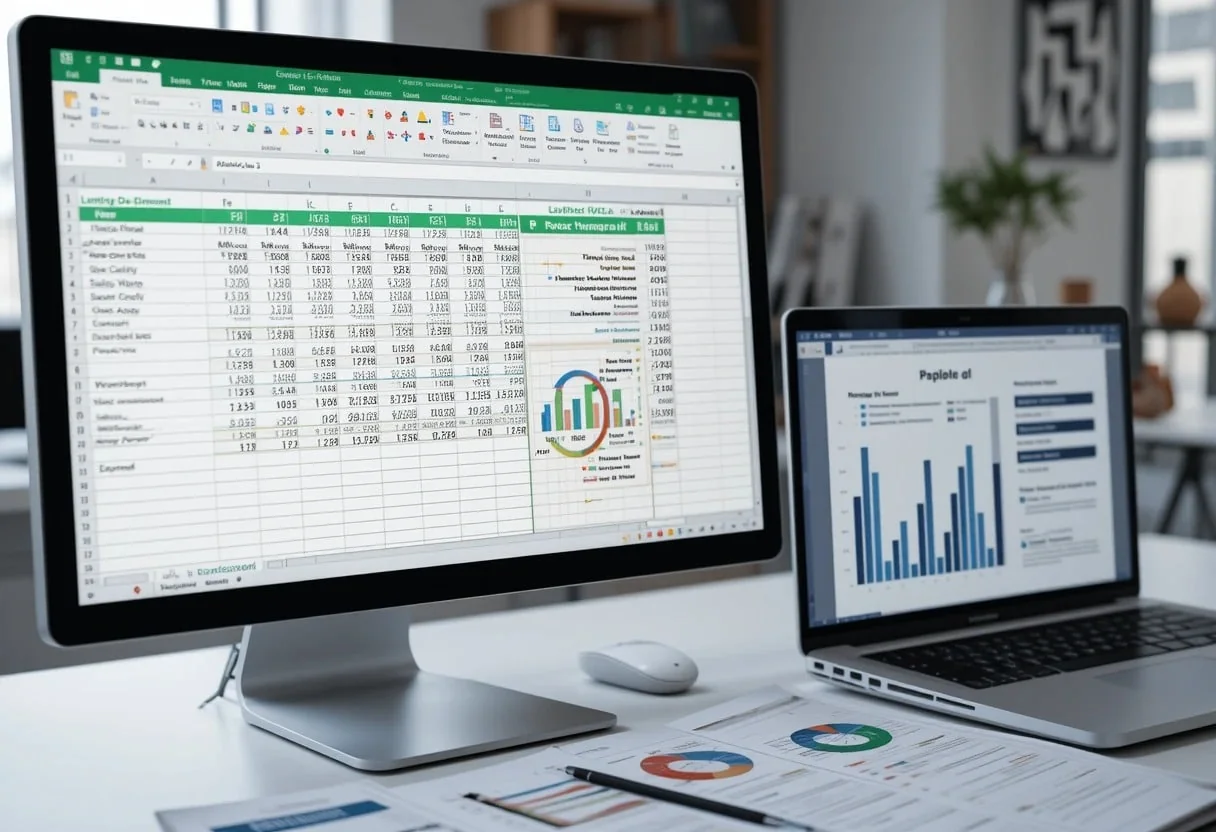
Excel and Word are essential tools for financial analysis, reporting, and data-driven decision-making. The seamless integration of Excel and Word in Microsoft 365 allows professionals to create dynamic reports, automate data transfers, and enhance financial modeling. This powerful combination streamlines workflows and improves efficiency in data presentation and storytelling.
I’ve found that Excel’s advanced functions and Power Query capabilities are game-changers for handling large datasets and creating dynamic financial models. With features like Power Pivot and DAX, I can build robust data models that automatically update as new information flows in. This real-time analysis capability has proven invaluable during board meetings and investor presentations.
Word complements Excel beautifully in my workflow. I use it to craft compelling narratives around our financial data, leveraging its AI-powered writing assistance to refine my language and ensure clarity in complex financial concepts. The seamless integration between Excel and Word allows me to embed live charts and tables directly into my reports, ensuring that our stakeholders always have access to the most up-to-date information.
Key Takeaways
- Excel and Word integration enhances financial analysis and reporting
- Advanced Excel functions enable real-time data modeling and insights
- Word’s AI features improve the clarity of financial narratives
Navigating the Microsoft Ecosystem
The Microsoft ecosystem offers powerful tools for financial analysis and data-driven decision-making. I’ll explore how Excel and Word integrate seamlessly through Microsoft 365, work across different platforms, and leverage cloud storage for enhanced productivity.
Unifying Excel and Word with Microsoft 365
I rely heavily on the integration between Excel and Word in Microsoft 365. This unified approach allows me to seamlessly embed live Excel data into Word reports, ensuring my financial analyses are always up-to-date.
I often use the “Paste Link” feature to insert dynamic Excel tables into Word documents. This way, when I update my financial models in Excel, the changes automatically reflect in my reports.
Another powerful feature I leverage is the ability to co-author documents in real-time. This enables my team to collaborate on complex financial analyses, with multiple analysts working on the same spreadsheet or report simultaneously.
Integration Across Platforms
The cross-platform capabilities of Microsoft 365 have revolutionized my workflow as a financial analyst. I can now access my critical Excel models and Word reports from various devices and operating systems.
On Windows, I use the full-featured desktop applications for advanced modeling. When I’m on the go, I rely on the iOS and Android apps to review and make quick edits to financial documents.
For Mac users on my team, the macOS versions of Excel and Word offer nearly identical functionality to their Windows counterparts. This ensures consistency in our financial analysis processes, regardless of the operating system used.
Leveraging OneDrive for Cloud Storage
I find OneDrive invaluable for cloud storage and collaboration. It allows me to store and access my Excel workbooks and Word documents from anywhere, ensuring I always have the latest version at my fingertips.
OneDrive’s version history feature is a lifesaver when working on intricate financial models. If I make a mistake, I can easily revert to a previous version of my spreadsheet.
I also use OneDrive’s sharing capabilities to securely distribute sensitive financial reports to stakeholders. By setting granular permissions, I maintain control over who can view or edit critical documents.
Optimizing Productivity with Excel
Excel offers powerful tools to streamline financial analysis and data-driven decision-making. I’ll share my top strategies for leveraging Excel’s advanced features to boost productivity and gain deeper insights from your data.
Advanced Formulas and Functions
I’ve found that mastering advanced Excel formulas is crucial for efficient financial modeling. SUMIFS and VLOOKUP are my go-to functions for complex data aggregation. For scenario analysis, I rely on nested IF statements and INDEX-MATCH combinations.
To analyze loan portfolios, I use the PMT function to calculate payments. Here’s a quick example:
=PMT(rate/12, term*12, loan_amount)
For time series forecasting, I employ the FORECAST.ETS function. It’s incredibly useful for predicting future values based on historical data.
Excel tips like these can save hours of manual work. I always recommend using named ranges to make formulas more readable and easier to audit.
Data Analysis with Pivot Tables
Pivot Tables are my secret weapon for quick data analysis. I use them to summarize large datasets and uncover trends that might otherwise go unnoticed.
To create a Pivot Table:
- Select your data range
- Click “Insert” > “PivotTable”
- Drag fields to the Rows, Columns, and Values areas
I often use calculated fields in Pivot Tables to derive custom metrics. For example, to calculate profit margin:
- Click PivotTable Tools > Analyze > Fields, Items & Sets > Calculated Field
- Enter the formula: =(Revenue – Cost) / Revenue
Pivot Charts are excellent for visualizing data. I frequently use them in management presentations to illustrate key performance indicators.
Automation Using Macros
Macros have revolutionized my Excel workflow. I use them to automate repetitive tasks and standardize reporting processes.
To record a simple macro:
- Go to View > Macros > Record Macro
- Perform the actions you want to automate
- Stop recording
For more complex automation, I write VBA code. Here’s a snippet I use to format financial statements:
Sub FormatFinancials()
    With ActiveSheet.Range("A1:D100")
        .NumberFormat = "_($* #,##0.00_);_($* (#,##0.00);_($* ""-""??_);_(@_)"
        .Font.Bold = True
    End With
End Sub
I’ve found that automating Excel tasks can significantly reduce errors and free up time for higher-value analysis. It’s well worth the initial investment to learn macro development.
Mastering Document Creation in Word
Word offers powerful tools for creating professional documents. I’ll cover two key aspects: leveraging free templates and ensuring security compliance.
Implementing Free Templates
I often use free templates in Microsoft Word to jumpstart my document creation process. They save time and ensure consistency across my reports.
To access templates, I click “File” then “New” in Word. I browse the template library or search for specific types like “financial report” or “budget proposal“.
Once I select a template, I customize it to fit my needs. I replace placeholder text, adjust formatting, and add my company’s branding elements.
I find templates particularly useful for recurring documents. For quarterly reports, I create a custom template with pre-formatted sections for financial data, charts, and analysis.
Maintaining Security and Compliance
I prioritize document security and compliance in Word. I use several built-in features to protect sensitive financial information.
I encrypt documents with passwords to restrict access. In the “File” menu, I select “Protect Document” and choose “Encrypt with Password“.
For collaborative work, I use the “Restrict Editing” feature. This lets me limit what changes others can make to the document.
I also use the “Inspector” tool to remove hidden data or personal information before sharing documents externally.
To ensure compliance, I add digital signatures to important financial documents. This verifies the document’s authenticity and prevents unauthorized changes.
Insights with Advanced Analytics
Excel’s advanced analytics tools revolutionize data analysis. I’ve found these features invaluable for uncovering patterns and making data-driven decisions. Let’s explore how predictive models and visualization techniques can transform your Excel workflow.
Predictive Models in Excel
I rely heavily on Excel’s predictive modeling capabilities for forecasting and trend analysis. The Data Analysis ToolPak is my go-to resource for regression analysis and time series forecasting. I often use the FORECAST.ETS function to create robust time-series models.
Microsoft Copilot in Excel has been a game-changer for me. It simplifies complex modeling tasks, allowing me to focus on interpreting results rather than building models from scratch.
For more advanced predictive analytics, I leverage Power Query to clean and transform data before building machine learning models using Azure Machine Learning integration.
Data Visualization Techniques
Effective data visualization is crucial for communicating insights. I frequently use Excel’s chart types like treemaps and sunbursts to represent hierarchical data structures. For time-series data, I prefer combo charts that overlay trend lines on bar graphs.
Power BI’s integration with Excel has expanded my visualization toolkit. I can now create interactive dashboards directly within Excel, allowing for dynamic data exploration.
Excel’s Analyze Data feature has streamlined my workflow. It automatically generates visual summaries and identifies key trends in my data, saving me hours of manual analysis.
I also use custom VBA scripts to create animated charts, which are particularly effective for presenting financial projections to stakeholders.
Adapting to Platform Specificities
Excel and Word adapt to different platforms with unique features and capabilities. I’ve found that understanding these differences is crucial for optimal use across devices and versions.
Mobile App Features
The mobile apps for Excel and Word offer streamlined interfaces for on-the-go productivity. I’ve noticed that the interface is designed to adapt to small screens of mobile devices, making it user-friendly.
Key features I’ve observed in the mobile versions include:
- Touch-optimized controls
- Simplified ribbon interface
- Quick access to recent files
- Cloud integration for seamless file access
I’ve found that while mobile apps offer core functionality, they may lack some advanced features available in desktop versions. This trade-off ensures smooth performance on smartphones and tablets.
Differences in Excel for the Web
Excel for the Web, also known as Excel Online, has its own set of unique characteristics. I’ve noticed it offers real-time co-authoring and AutoSave features, which enhance collaboration.
Key differences I’ve identified in Excel for the Web include:
- Limited advanced functions compared to desktop
- Faster loading times for large spreadsheets
- Automatic saving to OneDrive or SharePoint
I’ve found that Excel for the Web is great for quick edits and basic analysis. However, for complex financial modeling or data science tasks, I still prefer the desktop version’s full feature set.
Improving Collaboration and Workflow
I’ve identified key strategies to enhance teamwork and streamline processes using Excel and Word. These tools offer powerful features that can significantly boost productivity and facilitate seamless collaboration.
Real-time Collaboration Features
Real-time collaboration is a game-changer for team productivity. Microsoft 365 enables multiple users to work on the same document simultaneously, which is incredibly useful for financial modeling and report creation.
In Excel, I can share workbooks with my team, and we can edit cells concurrently. This feature has been invaluable for updating complex financial models quickly.
For Word documents, I appreciate the ability to see others’ edits in real-time. It’s especially helpful when crafting important financial reports or presentations.
I also utilize the commenting feature extensively. It allows me to provide feedback or request clarification without disrupting the document’s flow.
Streamlining Tasks and Approvals
To optimize workflow, I’ve implemented several strategies using Excel and Word’s advanced features.
I create automated workflows in Excel using Power Automate. This tool helps me set up approval processes for budgets and financial forecasts, saving significant time.
For task management, I leverage Microsoft Teams integration. I can assign tasks directly from Excel spreadsheets or Word documents, ensuring everyone knows their responsibilities.
I’ve also started using Microsoft 365 Copilot to draft initial reports and analyze data trends. While I always review and refine its output, it’s a powerful aid in speeding up my workflow.
Lastly, I use version history in Excel to track changes and revert if needed. This feature provides a safety net when collaborating on critical financial models.
Staying Ahead with Continuous Learning
I’ve found that keeping up with new features and exploring alternative solutions is crucial for maximizing efficiency in Excel and Word. Let me share my insights on how I stay ahead in my financial analysis and data science work.
Embracing New Features and Updates
I make it a priority to stay current with Excel and Word updates. I regularly check for new releases and immediately test any features that could enhance my financial modeling or data analysis workflows.
For example, I recently incorporated Excel’s XLOOKUP function into my models, replacing older VLOOKUPs. This improved my lookup speed and accuracy in large datasets. I also leverage Power Query for data cleaning, which has significantly reduced my preprocessing time.
In Word, I’ve embraced the new co-authoring features. This allows my team to collaborate on financial reports in real-time, boosting our productivity and ensuring everyone’s insights are captured efficiently.
Alternative Solutions like Google Docs
While I recognize the value in exploring alternatives like Google Docs. I’ve found that Google Sheets offers excellent real-time collaboration for quick financial analyses or budget tracking.
I particularly appreciate Google Docs’ robust version history feature. It’s invaluable for tracking changes in financial reports or data science documentation. The cloud-based nature also ensures I can access critical files from anywhere, which is crucial for on-the-go decision-making.
However, for complex financial modeling or advanced data analysis, I still prefer Excel’s power and flexibility. I use Google Docs as a complementary tool, not a replacement.
Frequently Asked Questions
I’ve compiled answers to common questions about integrating Excel and Word for financial reporting. These cover data transfer methods, automation techniques, and advanced Excel functions that enhance Word-based presentations.
How can I integrate data from Excel into a Word document for reporting purposes?
I recommend using the “Paste Special” feature in Word. This allows me to paste Excel data as a linked object. I select the Excel range, copy it, then in Word I go to Paste > Paste Special > Paste Link > Microsoft Excel Worksheet Object.
This maintains a live link to the original Excel file. When I update the Excel data, I can refresh the Word document to reflect those changes.
What are the best practices for linking Excel spreadsheets to Word documents to ensure data accuracy and consistency?
I always save both files in the same folder. This helps maintain the link if I move or share the files. I also use named ranges in Excel for the data I’m linking. This makes it easier to update the source data without breaking the link.
I add a note in the Word document stating when the data was last updated. This reminds me to refresh the links before finalizing reports.
Are there ways to automate the updating of financial data from Excel in Word to streamline report generation?
Yes, I use VBA macros for this. I create a macro in Word that opens the linked Excel file, refreshes all data connections, then updates the links in the Word document. I can run this macro with a single click, saving time on repetitive tasks.
For even more automation, I set up the macro to run automatically when opening the Word document. This ensures I always have the latest data.
How do I ensure data integrity when transferring complex financial models from Excel to Word?
I double-check all formulas and calculations after transferring. I use Excel’s auditing tools to trace dependents and precedents, ensuring I’ve captured all relevant cells.
For complex models, I create a separate Excel sheet with simplified outputs. This serves as an intermediary between my detailed model and the Word report, reducing errors.
What advanced Excel functions can be most effectively used to analyze large datasets for inclusion in a Word report?
I frequently use SUMIFS and COUNTIFS for conditional summaries. These functions allow me to quickly analyze data based on multiple criteria.
For trend analysis, I rely on the FORECAST.ETS function. It uses exponential smoothing algorithms to predict future values based on historical data.
How can one use Excel’s data visualization tools to enhance financial presentations in Word documents?
I create dynamic charts in Excel using PivotCharts. These automatically update as the underlying data changes. I then link these charts to my Word document.
For more interactive visuals, I use Excel’s Power View feature. It allows me to create dashboards with slicers and filters. I can then embed these in Word for a more engaging presentation.
