

Turn any image into an Excel file?
Ever think about turning your face or that picture of your neighbor’s dog into an Excel file? Well, even if you haven’t, you now can!
Years ago I created this little utility that can turn any image into an Excel file. Click here to download it for yourself.
How do we use it?
Ok, here are the instructions.
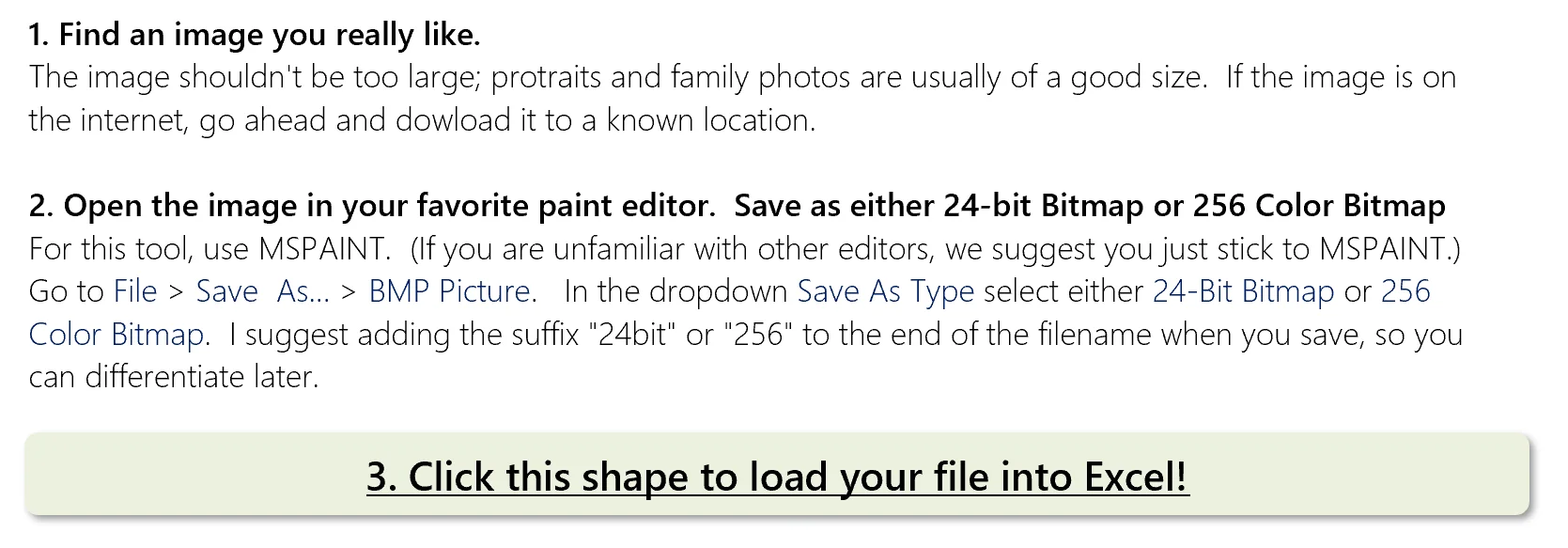
- Identify the image you want to turn into an Excel file.
- Save it as a bitmap. My utility will work with 24-bit and 256 color bitmap types. If you want to know how to save it as a bitmap, you can just use mspaint as I’ve done in the video.
- Open my bitmap_to_excel utilty and go to the Instructions tab. Click on the Click this Shape to Load in your file into Excel button…
- Select the file you’ve just made. Click Open. (see the image below)
- Sit back, relax and enjoy the your new spreadsheet.
Ok, but, how’d you build this?
That’s a great question, but it’s been many years. The best I can say is that it’s all about reading in the the bitmap specification using the correct size bits and bytes. If you want to take it apart yourself, please, have at it.
I’ve included some resources for you to get started!
Helpful Bitmap Resources
- Bitmap Header Types – https://learn.microsoft.com/en-us/windows/desktop/gdi/bitmap-header-types
- Wikipedia Bitmap File Format (I remember using this extensively) – https://en.wikipedia.org/wiki/BMP_file_format
- Creating a Bitmap image in VB 6.0 – https://rerickso.w3.uvm.edu/projects/vb_bmp/BMP.html
But why’d you build this?
I can’t really remember, honestly. I feel like I had a good reason for it. But as with most things I build in Excel, it’s because nobody had really done it before.
Few problems you may (but hopefully won’t) run into
- The picture shows up discolored and slanted. While I’m fairly certain that I’ve fixed this issue, I admit that I am by no means perfect. When bitmaps are saved, they are “padded” in the file to make their height evenly divisible by four. The program should compensate for this padding, but if it doesn’t — again, I’m fairly certain this issue is resolved — just resize the bitmap it to the nearest number evenly divisible by four. (That number is at most three digits away.)
- Too many Different Cell Formats error. Sometimes you’ll get this annoying popup. If that happens, try zooming in on the canvas screen first and then reuploading your file. If that doesn’t work, either crop the original image or resize to a smaller one. Or, if you are uploading a 24-bit bitmap, consider resaving as an 8-bit and then reuploading.
Also, this is best used with Excel 2007 and above. It will work in 2003, but remember that 2003 has a column size limitation, which may cause in an error for files that are too large. If you are concerned, smaller is better: resize or choose to save in the 8-bit format. When you are done, remember to save as in the Excel 2007 file type (check to see if you are in compatibility mode) so that you get all the columns required to display your most productive spreadsheet, ever. If you like what you see and choose to host a spreadsheet made with this program (or screen capture of one) on your blog or website, I’d be so grateful if you mentioned this blog! Have fun.
Would you ever use this?
After I built this bitmap to Excel program, I thought I’d have tons of uses. But I haven’t really come up with anything except as a fun way to surprise friends.
But maybe you’re different! Leave a comment here, on YouTube, and in our Facebook group on what you might use it for!
Get the Download File!
Click here to get the download file

Comments (7)
Historical comments preserved from the WordPress archive. Commenting is no longer active.
Wow great trick, Jordan. I love the Excel and its always good to find new tips and tricks.
Thanks!
The title says “MAKE YOUR EXCEL SPREADSHEET INTO A BITMAP IMAGE WITH THIS EXCEL MAGIC TRICK”.
But the content of the page explains turning a bitmap into an Excel spreadsheet, that is the other way around. Or did I miss something?
I get what you’re saying. I think at the level of what a bitmap is. I see it as storage pattern. And I guess I thought to myself where each cell becomes a pixel representing a certain color in a color range would make a bitmap.
But on a second… you’re absolutely right. Bitmap is a storage pattern. All images are made up of pixels at their core so my original thought can’t be right.
Admittedly, I’m probably not going to change the title 🙂 if only because I usually don’t correct stuff that’s been out there for a while. One correction is never enough and I end up knee deep in it.
Thanks again though. I think you make a valid point.
This is a great resource for maps, and with conditional formatting and filters we can create great dashboards.
Thanks
Hi, could you please check the download link of the file you shared, it’s broken, best regards
This is a very interesting trick! I will definitely try it out.